Laptop USB-C Video Output Support: How to Check Yours?
You plug a monitor into your laptop, the screen stays black, and nothing you click brings it to life. Most of the time the monitor is fine and the cable…
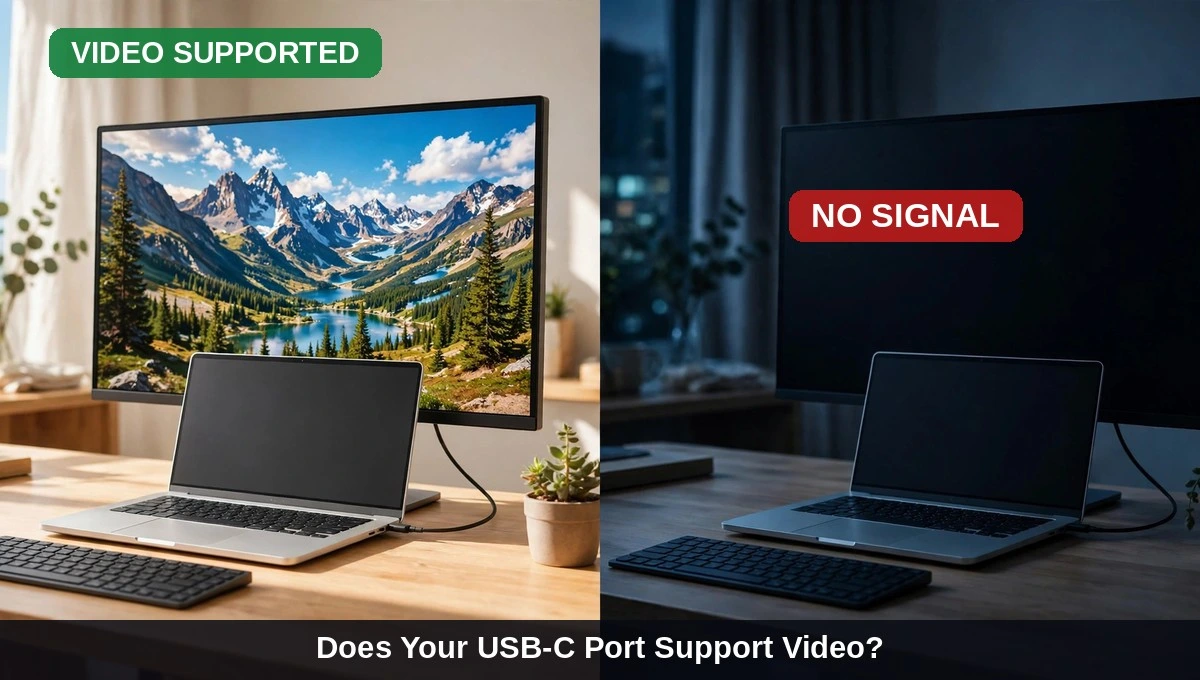
You plug a monitor into your laptop, the screen stays black, and nothing you click brings it to life. Most of the time the monitor is fine and the cable is fine. The real question is laptop USB-C video output support: whether the small oval port on your machine was ever built to send a picture at all. This guide shows you how to check your exact port in a few minutes, how to fix the no signal problem step by step, and what your options are if your port turns out to have no video in it.
The Short Answer: Three Things Decide It
A picture reaches your monitor only when three things agree with each other.
First, the port on your laptop must be able to send video. Second, the cable must be built to carry video, because many USB-C cables carry only power and data. Third, the monitor or adapter on the other end must accept the kind of signal the port sends.
If any one of the three says no, the screen stays black, even though the same port happily charges your laptop and reads a memory stick. Charging and video are separate jobs inside the same plug, and one working tells you nothing about the other.
The Three Video Technologies Behind the Port
What Is DisplayPort Alt Mode?
So, what is DisplayPort alt mode in plain words? It is a feature that lets a USB-C port hand some of its fast internal wires over to a DisplayPort video signal, the same signal a normal monitor cable carries. The port stops acting like a USB port for a moment and acts like a display port instead, while it can still deliver power at the same time.
This is the technology behind most USB-C monitor connections. It is built into the hardware, which means a port either has it or it does not. No setting, driver or update can add it later. The laptop maker chooses to wire it up or leave it out, and cheaper laptops often leave it out to save cost.
Thunderbolt: The Port That Always Carries Video
Thunderbolt uses the same USB-C plug, but it follows stricter rules set by Intel. Every Thunderbolt 3, 4 or 5 port must carry video, fast data and power. If your port has one, you never have to guess about the picture.
Thunderbolt 4, for example, is guaranteed to run two 4K monitors at 60Hz, or one 8K monitor. You can spot a Thunderbolt port by the small lightning bolt printed beside it. If you see that bolt, your search is over: the port supports video.
USB4: The Newer Standard
USB4 is the newer USB standard, found on recent laptops, running at 40Gbps, with a faster 80Gbps version now arriving. USB4 builds display support into its design, because it can carry a DisplayPort signal inside its own data stream.
In practice, a port sold as USB4 is a safe bet for video. Still check the maker’s page for how many monitors it supports and at what resolution, because those limits vary from one laptop to the next.
How to Check If Your USB-C Port Supports Video
You do not need tools or apps for this. Four checks, in this order, settle the question of how to check if your USB-C port supports video on any laptop.
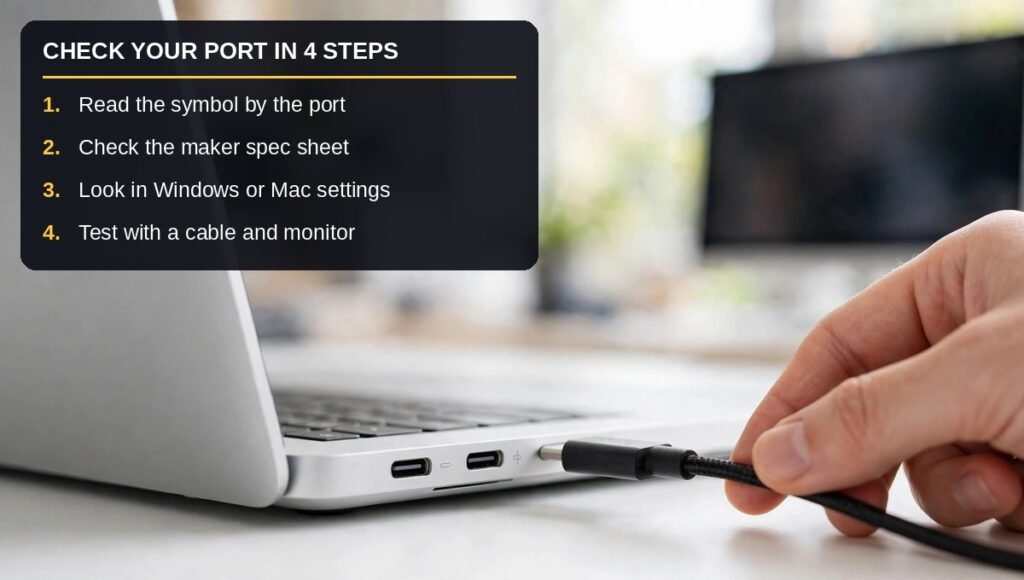
Step 1: Read the Symbol Next to the Port
Look closely at the tiny print beside each USB-C port. Makers use a small set of symbols, and they tell you most of the story.
| Symbol beside the port | What it means for video |
|---|---|
| Lightning bolt | Thunderbolt. Video is supported, along with fast data and charging. |
| A “DP” or DisplayPort logo | DisplayPort Alt Mode is supported. Video works. |
| “40” or “80” speed marking | USB4. Video is supported. |
| “SS” trident, or “5” or “10” speed marking | A data speed promise only. Video is not promised. |
| Plug or battery icon | This marks the charging port. It says nothing about video. |
| No symbol at all | No clue either way. Move to Step 2. |
One warning: many laptops have two USB-C ports that look identical but do different jobs. Check the symbol beside each port separately, not just the first one you find.
Step 2: Check the Manufacturer Specifications
The spec sheet is the final word. Search for your exact laptop model on the maker’s support site, open the specifications or the user manual, and find the ports list. You are looking for one of these phrases beside your USB-C port:
- “DisplayPort Alt Mode” or “DP Alt Mode”
- “DisplayPort over USB-C”
- “Thunderbolt 3”, “Thunderbolt 4” or “Thunderbolt 5”
- “USB4”
Any of those means video is supported. Two findings mean it is not: the words “data only”, or a plain USB speed such as “USB 3.2 Gen 1” with nothing about video beside it. If the manual lists two USB-C ports, match the description to the port’s position in the manual’s diagram, because the two ports often differ.
Step 3: Check Inside Windows or macOS
Your operating system can confirm part of the story. On Windows, open Device Manager and look for “USB4 Host Router” or “Thunderbolt Controller” in the device list. If either appears, your laptop has at least one Thunderbolt or USB4 port, and those ports support video. It does not tell you which physical port it is, so combine it with Step 1 or Step 2.
On a Mac, open System Settings, then General, then About, and look for the System Report under Thunderbolt or USB4. The simple version is this: every USB-C port on a modern MacBook supports video, so Mac owners rarely face this problem at all.
Step 4: Test With a Cable and a Monitor
The last check is a direct test. Connect the laptop straight to a monitor with a cable that is sold as a video cable, with no hub or dock in between. Turn the monitor on, select the input that matches the socket you used, and see if the picture appears. A direct test removes every middleman, so its answer is one you can trust.
The same direct test works with a portable monitor, and our AR glasses vs portable monitor guide compares that kind of travel screen with wearing the display instead.
Can All USB-C Ports Output Video?
No, and this is where most of the confusion starts. People ask can all USB-C ports output video because the plug looks the same on every laptop, but USB-C is only a shape. What travels through it is the maker’s choice.
Wiring a port for video costs money and board space, so budget laptops often ship with USB-C ports that handle charging and data only. The same model line can even mix the two: one port with video for your monitor, one plain port for everything else. That is why a monitor can work on the left port of a laptop and show nothing on the right port of the very same machine.
USB-C to HDMI No Signal: Work Through These Fixes
The USB-C to HDMI no signal error is the most common complaint in this whole topic. Work through these checks in order, changing one thing at a time, and you will find the weak link.
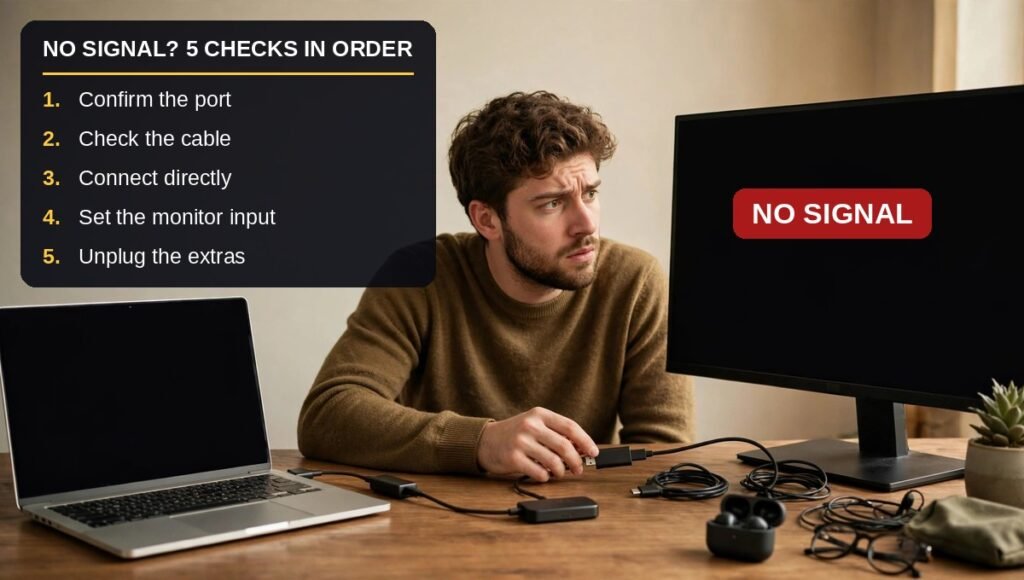
The Five Checks, In Order
- Confirm the port. Run the checks in the section above. If the port has no video, no adapter will fix it, and you can skip straight to the workaround below.
- Check the cable. A charging cable is the most common hidden cause. Many cables in phone boxes carry power and slow data only, with no video wires inside. Use the cable that came with the monitor, or one clearly sold as a video or Thunderbolt cable.
- Connect directly. Remove every hub, dock and adapter between the laptop and the monitor for the first test. Add them back one at a time once the direct connection works.
- Set the monitor input. Monitors do not always switch inputs by themselves. If the cable is in the HDMI socket, the monitor must be set to HDMI, not DisplayPort or USB-C.
- Unplug the extras. If you have more than one USB-C display or adapter connected, unplug the others and test with a single screen.
What “Display Connection Might Be Limited” Really Means
Windows shows the message “Display connection might be limited” when it detects a dock, adapter or monitor that your PC cannot fully support over that connection. In plain terms, Windows has spotted a mismatch somewhere in the chain. You may get no picture at all, or a picture at a lower resolution than you expected.
Treat the message as a pointer, not a fault code. Work through the five checks above, starting with the port and the cable, because those two cause most cases.
If Your Port Has No Video: The DisplayLink Workaround
A data only port is not the end of the road. A DisplayLink dock or adapter carries its own graphics chip and sends the picture over plain USB data, so it works through ports with no video of their own, and even through an old USB-A port. It needs a small driver installed, and then it behaves like a normal second screen for desk work.
Where DisplayLink helps
It rescues laptops whose USB-C ports are data only, and it is a clean way to run two monitors from a machine that was never built for it. For documents, browsing, email and video calls, most people cannot tell the difference.
Where DisplayLink falls short
The picture is made by software, so it uses some of your processor’s power. Fast games can feel a step behind, and some protected streaming apps may show a black window instead of the film, because the path is not a true display connection. If gaming or films are your main use, a laptop with a real video port, or its built in HDMI socket, is the better answer.
Big new games punish a weak setup fast, as our GTA 5 vs GTA 6 comparison shows in its graphics and system requirements sections.
Resolution, Refresh Rate and Charging: Match All Three
Getting a picture is only half the job. Three numbers decide whether the setup feels right once it works.
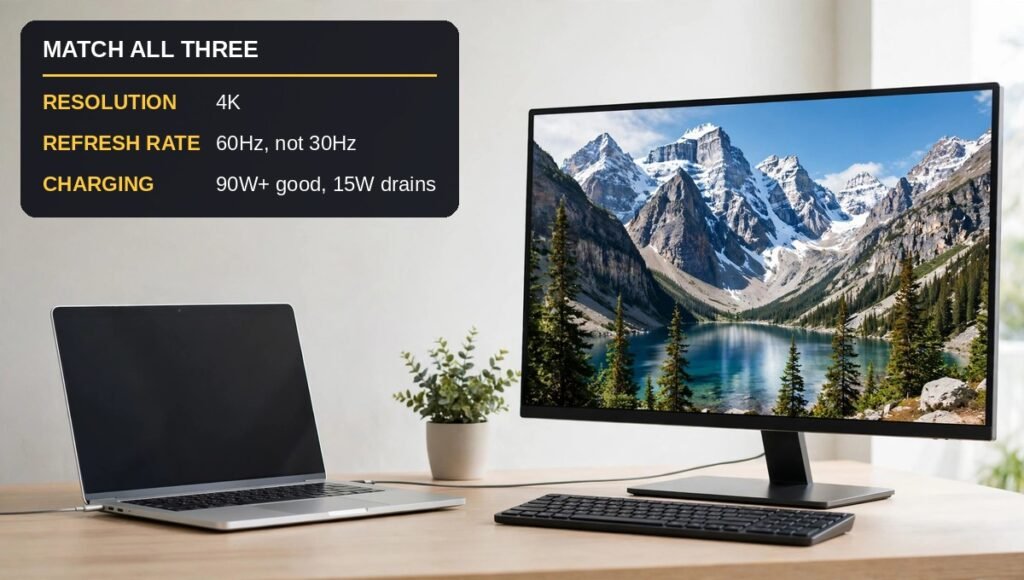
Why 4K Sometimes Stops at 30Hz
Inside a USB-C cable, the fast wires are shared between the picture and your USB data. If a dock or hub gives some of those wires to data, fewer are left for video, and a 4K monitor can drop to a sluggish 30Hz. Older ports with DisplayPort 1.2 hit this limit sooner than DisplayPort 1.4 ports.
The fix is usually simple. Connect the monitor directly, or use the port and cable that give video the full path, then set the refresh rate in your display settings. And remember that a monitor’s highest refresh rate may apply to one input but not another, so check the monitor’s own spec sheet for the input you are using.
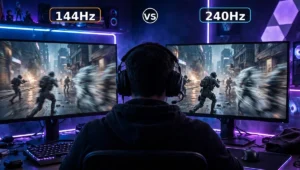
If you are picking a gaming monitor for the laptop, our 144Hz vs 240Hz gaming monitor comparison shows what the higher refresh rates feel like in real games.
Will the Monitor Charge Your Laptop at the Same Time?
Many USB-C monitors send power back down the same cable, which gives you the tidy one cable desk. The catch is the wattage. Office monitors often supply 90W or more, which keeps most laptops charged all day. Some gaming monitors supply as little as 15W: the picture is perfect, but the battery drains slowly while you work.
Compare the monitor’s USB-C power figure with your laptop’s charger before you buy. Gaming and workstation laptops with big power needs often still need their own power adapter, whatever the monitor offers.
Gaming and workstation laptops with big power needs often still need their own power adapter, whatever the monitor offers
FAQs – Laptop USB-C Video Output Support
Can all USB-C ports output video?
No. USB-C is only the shape of the plug. A port sends video only if the maker wired it for DisplayPort Alt Mode, Thunderbolt or USB4. Many budget laptops have USB-C ports that carry charging and data only, so always check your exact model.
How do I check laptop USB-C video output support on my own machine?
Start with the symbol beside the port, then confirm it on the maker’s spec sheet for your exact model. On Windows, Device Manager can confirm a Thunderbolt or USB4 controller exists. A direct test with a video rated cable settles any doubt.
What is DisplayPort Alt Mode in simple words?
It is a feature that lets a USB-C port send a normal DisplayPort picture signal through its fast wires. The port, the cable and the monitor all need to support it. If any one of the three does not, the screen stays black.
Why does my laptop charge over USB-C but show no picture?
Because charging and video are separate jobs. A port can deliver power and data while having no video wiring at all. The same is true of cables: a charging cable may carry no video wires. Check the port first, then swap the cable.
What does “Display connection might be limited” mean?
It is a Windows warning that something in your USB-C chain cannot be fully supported: the port, cable, adapter or monitor does not match what the PC can do. You may get no picture, or a lower resolution. Check the port and cable first.
Can I use my phone charging cable to connect a monitor?
Usually not. Most phone cables are built for power and slow data, and they have no video wires inside. Use the cable supplied with the monitor, or buy one clearly sold as a video, USB4 or Thunderbolt cable.
Can a USB-C to HDMI adapter add video to a port that has none?
No. An adapter only converts a video signal that already exists. If the port has no DisplayPort Alt Mode, Thunderbolt or USB4, there is nothing to convert. Your real options are a DisplayLink dock or the laptop’s HDMI port.
Why is my 4K monitor stuck at 30Hz over USB-C?
The fast wires inside the connection are being shared with USB data, or the port uses an older DisplayPort version, so there is not enough room left for 4K at 60Hz. Connect directly without a hub and check the refresh rate in display settings.
Will a USB-C monitor charge my laptop while it shows the picture?
Often, yes, if the monitor supports USB Power Delivery. Check its wattage figure: office monitors may give 90W or more, while some gaming monitors give as little as 15W, which shows the picture but charges the laptop very slowly.
Do all MacBook USB-C ports support video?
Yes. Every USB-C port on a modern MacBook supports video and charging, which is why Mac owners rarely hit this problem. The limits on a Mac are about how many external monitors the chip supports, not about whether the port can send a picture.
Can a driver or software update add video output to my port?
No. Video output is hardware wiring decided when the laptop was built, and no update can add it. The one exception is a DisplayLink dock, which uses its own graphics chip and driver to send a picture over plain USB data.
How many monitors can I run from one USB-C port?
It depends on the technology. Thunderbolt 4 guarantees two 4K monitors at 60Hz. A plain DisplayPort Alt Mode port usually runs one monitor directly, and a dock can split the signal further, within the limits the laptop maker lists in the specifications.
Final Words – Laptop USB-C Video Output Support
A black screen feels like a broken laptop, but it is almost always a simple mismatch that you can find in minutes. Laptop USB-C video output support comes down to what the maker wired into your exact port: DisplayPort Alt Mode, Thunderbolt or USB4 means a picture, while a data only port means no adapter will ever persuade it.
Read the symbol, confirm it in the specifications, test with a proper video cable, and you will know where you stand. And if your port has no video, you still have real options, from the laptop’s HDMI socket to a DisplayLink dock, so no laptop has to stay a one screen machine.