How to Record 4K Video to External SSD Phone ?
Want to record 4K video to external SSD phone without filling up your storage? You can do it but only if your phone, cable, SSD, and format all match. Many…
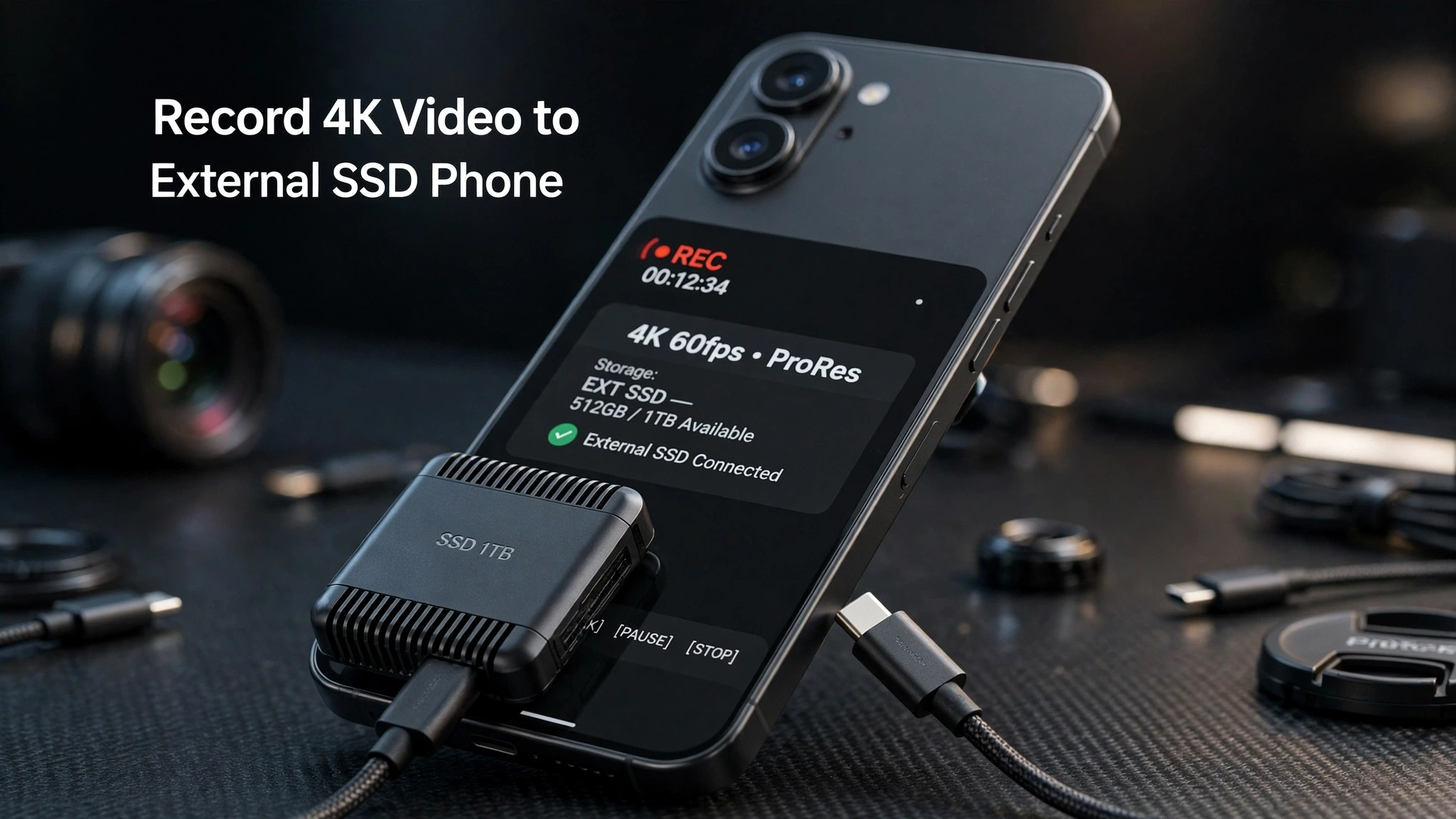
Want to record 4K video to external SSD phone without filling up your storage? You can do it but only if your phone, cable, SSD, and format all match.
Many phones can now save video straight to a portable drive while you shoot. That means no more “Storage Full” warning in the middle of a wedding, vlog, or travel shot. It also means faster editing, because your footage is already on a drive you can plug into your laptop.
In this guide, you will learn how to connect SSD to phone for video recording, which phones actually support it, which SSD to buy, and how to fix the errors that stop most people.
Why Record 4K Video Directly to an SSD?
Your phone’s internal storage is fast, but it is limited. One hour of 4K video can eat 100GB to 400GB depending on the format.
When you record directly to an SSD:
- Your phone stays empty for photos and apps
- You can shoot longer without stopping
- You can plug the same SSD into your laptop and start editing
- You don’t have to wait for slow AirDrop or USB transfer
This is why creators, YouTubers, and filmmakers now use this setup every day.
Which Phones Can Record 4K Video to External SSD?
Not every phone with USB-C can do this. A USB-C port alone is not enough. The phone’s software must allow external recording.
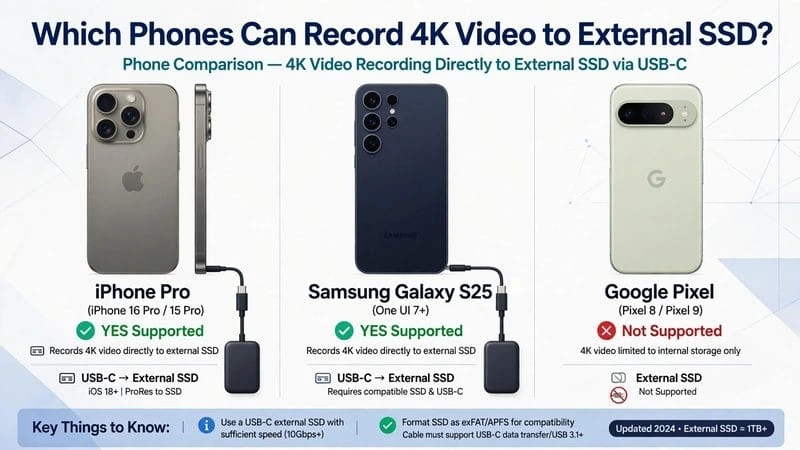
iPhone
Supported for direct recording:
- iPhone 15 Pro / 15 Pro Max
- iPhone 16 Pro / 16 Pro Max
- iPhone 17 Pro / 17 Pro Max
- iPhone 18 Pro / 18 Pro Max
Not supported for direct recording:
- iPhone 15, 15 Plus, 16, 16 Plus, 17
- iPhone 14 and older (Lightning port)
On iPhone, direct recording works only with ProRes. You cannot record normal 4K Dolby Vision directly to an SSD in the stock Camera app. If you use an app like Blackmagic Camera, you get more options.
Samsung Galaxy
- Galaxy S24 Ultra – Limited, works with Camera Assistant in some One UI versions
- Galaxy S25 / S25 Ultra / S25 Plus – Best Android support
- Galaxy S26 series – Expected to support it natively
Samsung lets you record normal 4K, not just ProRes. Go to Camera > Settings > Camera Assistant > Save videos to external storage. On newer One UI, this option is directly under Camera > Settings > Video.
Google Pixel / Other Android Phones
- Pixel 9 Pro / Pixel 10 Pro – No direct recording in stock Camera app
- You need a third-party app like Blackmagic Camera or MotionCam
- OnePlus, Xiaomi, and Motorola – Mostly need third-party apps
Simple rule: iPhone Pro = ProRes only. Samsung S25 = easiest Android. Other Androids = need an app.
USB Speeds: The Part Most People Get Wrong
Your cable matters more than your SSD.
iPhone Pro models use USB 3 with a maximum speed of 10Gbps. That means even if you buy a 20Gbps or 40Gbps SSD, the phone will only use 10Gbps.
What You Actually Need
| Recording Mode | Minimum Write Speed | Cable Needed |
| 4K 30fps ProRes | 220 MB/s | USB 3, 10Gbps |
| 4K 60fps ProRes | 220 MB/s | USB 3, 10Gbps |
| 4K 120fps ProRes | 440 MB/s | USB 3, 10Gbps |
| 4K 60fps Normal (Samsung) | 150-200 MB/s | USB 3, 10Gbps |
Don’t use your phone’s charging cable. Most charging cables are USB 2.0 and are too slow. They will cause recording to stop. Always use the cable that came with your SSD, or a certified 10Gbps USB-C cable.
Also check power. Apple says your SSD must use less than 4.5W. Most portable SSDs are fine, but cheap enclosures with a big NVMe drive can use too much power and disconnect.
File Formats: exFAT vs APFS vs FAT32
This is where most beginners fail.
Use exFAT. Always.
- exFAT: Works on iPhone, Android, Windows, and Mac. This is what Apple requires for ProRes recording.
- APFS: Works only on Apple devices. Apple does NOT allow APFS for direct ProRes recording, even if you have a Mac.
- FAT32: Too old. It cannot save a file larger than 4GB. One minute of 4K video is bigger than that.
How to Format Your SSD to exFAT
On Windows: Right-click drive > Format > exFAT > Start
On Mac: Disk Utility > Select SSD > Erase > exFAT
On iPhone: Files app > Long-press SSD > Format to exFAT
Back up your files first. Formatting deletes everything.
For 4K 120fps ProRes, Apple also recommends reformatting before each shoot after you have copied your footage. This keeps the drive fast and clean.
How to Connect SSD to Phone for Video Recording
Here is the exact setup that works:
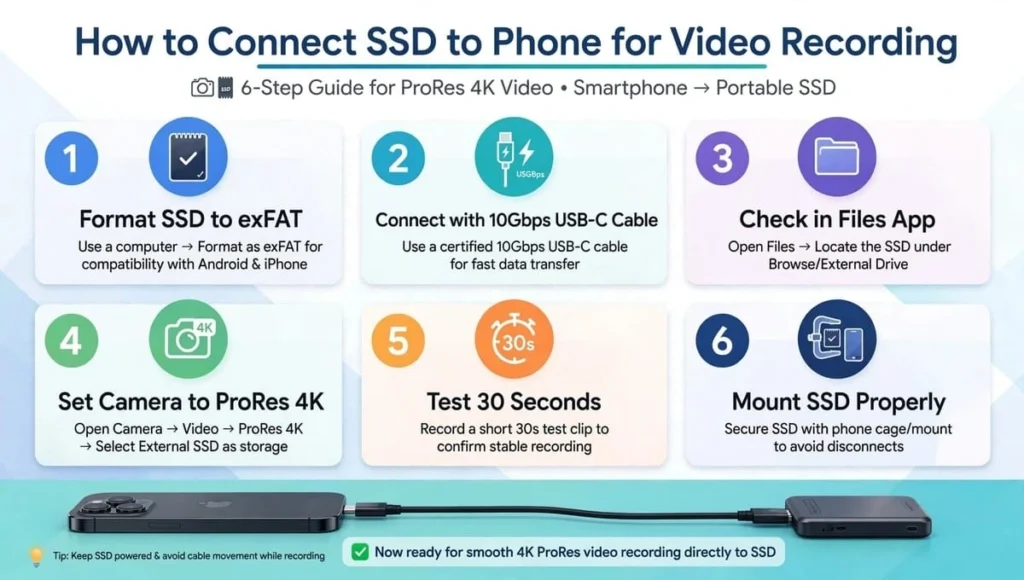
Step 1: Format
Format your SSD to exFAT. Make sure it has only one partition. No password, no encryption.
Step 2: Connect
Plug the SSD into your phone using a 10Gbps USB-C cable. Don’t use a hub for your first test. Keep it simple.
Step 3: Check
Open Files (iPhone) or My Files (Samsung). If you see your SSD there, it is connected.
Step 4: Set Camera
On iPhone, go to Settings > Camera > Formats > Turn on Apple ProRes. Then open Camera > Video > Tap ProRes > Choose 4K and 60 or 120fps.On Samsung, go to Camera > Settings > Enable Save to external storage.
Step 5: Test for 30 seconds
Record a 30-second test clip. Then check if the file is on the SSD, not on your phone. If it works, you are ready.
Step 6: Mount it properly
Don’t let the SSD dangle. Use a MagSafe mount, a small cage, or tape it to the back of your phone case. If the cable moves, recording will stop.
How to Record ProRes to External SSD iPhone
ProRes is Apple’s professional format. The files are huge, but the quality is amazing for editing and color grading.
To do it:
- Connect your exFAT SSD to your iPhone Pro
- Go to Settings > Camera > Formats > Apple ProRes ON
- Open Camera app > Switch to VIDEO
- Tap ProRes at the top
- Select 4K 60fps or 4K 120fps
- You will see a small SSD icon. That means it is recording to the SSD
If you don’t see the SSD icon, your drive is not recognized. Check cable, format, and power.
How Much Storage Do You Need?
| Format | 1 Minute | 1 Hour |
| 4K 30fps ProRes | ∼1.7 GB | ∼102 GB |
| 4K 60fps ProRes | ∼3.5 GB | ∼210 GB |
| 4K 120fps ProRes | ∼7 GB | ∼420 GB |
| 4K 60fps Normal (Samsung) | ∼0.7 GB | ∼42 GB |
So a 1TB SSD gives you about 4-5 hours of 4K60 ProRes, or about 14 hours of normal Samsung 4K.
Best SSD for iPhone 4K Video Recording
You don’t need the most expensive SSD. You need one that is fast for a long time, low power, and small.
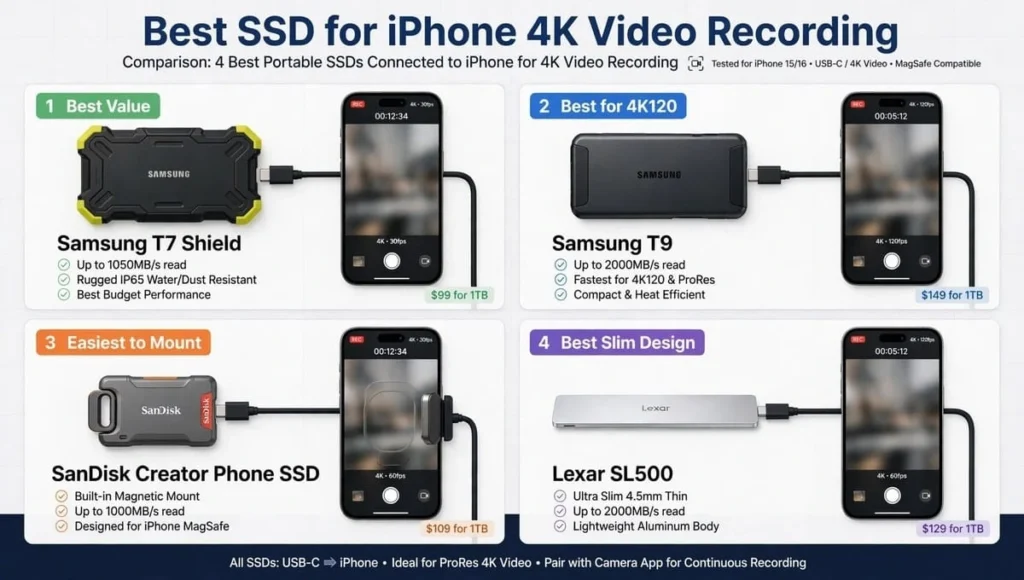
Here are the 4 most trusted options:
1. Samsung T7 Shield 1TB / 2TB – Best Overall Value
Fast, tough, IP65 water resistant. Works great for 4K60 and 4K120. Very reliable sustained speed. Best for beginners.
2. Samsung T9 1TB / 2TB – Best for 4K120
Faster than T7, stays cool longer. Best if you shoot 4K120 a lot. Slightly more expensive.
3. SanDisk Creator Phone SSD 1TB – Easiest to Mount
Made for phones. Magnetic back, very light. Perfect for handheld vlogging. Officially supports 4K60 ProRes.
4. Lexar SL500 / Lexar Muse – Best Slim Design
Very thin, magnetic. Good for iPhone rigs. Supports ProRes recording.
What to avoid: Don’t buy a random cheap SSD enclosure from Amazon. Many show high peak speed on the box, but slow down after 2 minutes. That causes recording stops.
Recording Limitations You Must Know
Even with the best setup, there are limits:
- You cannot charge your phone and record to SSD with one port unless you use a powered USB-C hub.
- Your phone may get hot in sunlight. If it overheats, it will stop recording to protect itself.
- You cannot use an encrypted SSD for ProRes.
- You cannot record ProRes to SSD on non-Pro iPhones.
- If you unplug the SSD mid-recording, that file will be corrupted.
- Some apps will not let you record to SSD at all. Always test before an important shoot.
Troubleshooting: Why Recording Stops
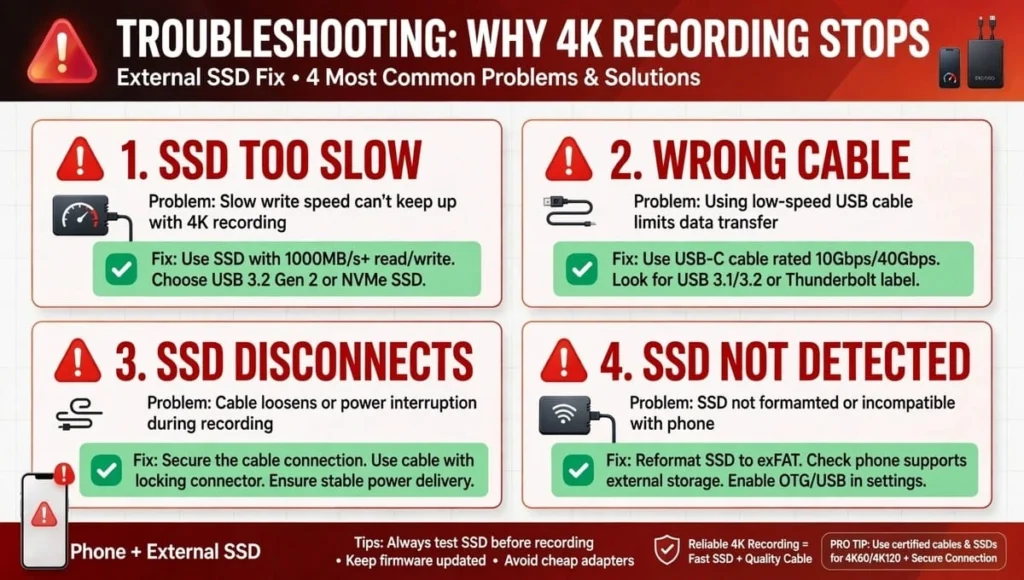
4K Video Recording Stops External SSD – Fix
This is the most common problem. It happens for 4 reasons:
1. SSD Too Slow Error
Your SSD’s sustained speed dropped. Fix: Reformat to exFAT, use a better SSD like Samsung T7 Shield, and don’t record when the SSD is almost full. Keep at least 20% free.
2. Wrong Cable
You are using a charging cable. Fix: Use a 10Gbps cable. The cable should say “10Gbps” or “USB 3.2 Gen 2” on it.
3. SSD Disconnects
The cable is loose or the SSD uses too much power. Fix: Mount the SSD firmly, use a short cable, and don’t use a cheap hub.
4. iPhone Says SSD Not Detected
Fix: Unlock your phone before plugging in, check Files app, try reformatting, and restart your phone.
Always do a 1-minute test before a real shoot. Never trust a new setup on a wedding or client project.
Final Verdict – Record 4K video to external SSD phone
Learning to record 4K video to external SSD phone is a game-changer once you get the setup right. Use a Pro iPhone or Samsung S25, a 10Gbps cable, an exFAT SSD, and always test before you shoot.
If you want the easiest setup, start with Samsung T7 Shield or SanDisk Creator Phone SSD. Both are proven for best SSD for iPhone 4K video recording and also work great on Android. Remember to learn how to record ProRes to external SSD iPhone properly, because one wrong format or cable can cause your 4K video recording stops external SSD problem.
Once you have the right gear, you can shoot for hours without worrying about storage.
FAQs – Record 4K video to external SSD phone
Can I record 4K video to external SSD on iPhone 15?
Only iPhone 15 Pro and Pro Max support it. The normal iPhone 15 and 15 Plus cannot record directly to SSD because they lack ProRes and USB 3 support.
How to record ProRes to external SSD iPhone?
Connect an exFAT SSD with a 10Gbps cable. Go to Settings > Camera > Formats > Enable ProRes. Open Camera > Video > Tap ProRes > Select 4K. You will see an SSD icon when recording externally.
What is the best SSD for iPhone 4K video recording?
Samsung T7 Shield is best for value and reliability. Samsung T9 is best for 4K120. SanDisk Creator Phone SSD is best for easy magnetic mounting on phones.
Why does 4K video recording stops external SSD?
It usually stops because of a slow cable, a slow SSD, a loose connection, or the drive being almost full. Use a 10Gbps cable, reformat to exFAT, and keep 20% free space.
Can I record normal 4K, not ProRes, to SSD?
Yes, on Samsung S25 you can record normal 4K directly. On iPhone, the stock Camera app only allows ProRes to SSD. For normal 4K, use the Blackmagic Camera app.
Can I use any SSD for phone video recording?
No. Your SSD must support at least 220MB/s sustained write for 4K60, use less than 4.5W, and be formatted to exFAT. Cheap drives often fail after a few minutes.
Can I charge my phone while recording to SSD?
Yes, but you need a powered USB-C hub with one port for charging and one for the SSD. You cannot do both with a single direct cable.
How do I fix iPhone not detecting external SSD?
Unlock your phone, reconnect with a 10Gbps cable, check Files app, and reformat to exFAT. Restart your phone if it still does not show. Avoid encrypted drives.
How much storage for 1 hour of 4K video?
For iPhone ProRes 4K60, you need about 210GB per hour. For Samsung normal 4K60, you need about 42GB per hour. Always carry a 1TB or 2TB SSD for long shoots.
Can I edit video directly from the SSD?
Yes. Plug the SSD into your laptop and edit in CapCut, Premiere Pro, or Final Cut. You don’t need to copy files first, but make a backup before you start editing.