144Hz vs 240Hz Gaming Monitor: Which Is Worth It?
If you are shopping for a 144Hz vs 240Hz gaming monitor, you have probably heard two opposite claims. Some players swear 240Hz is a game changer. Others say you cannot…
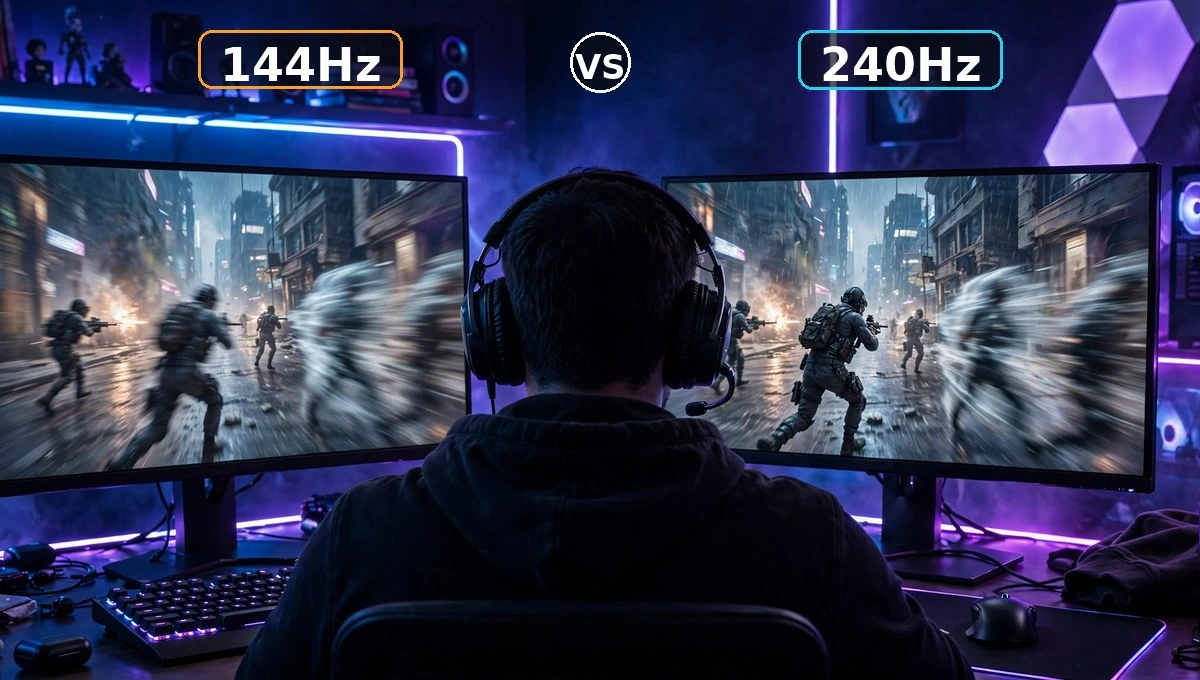
If you are shopping for a 144Hz vs 240Hz gaming monitor, you have probably heard two opposite claims. Some players swear 240Hz is a game changer. Others say you cannot even tell the difference. Honestly, both are partly right.
The real answer is not about the bigger number. It is about frame time, motion clarity, and whether your PC can actually feed the screen. This guide breaks all three down in simple words, so you can pick the 144Hz vs 240Hz gaming monitor that fits your games, your PC and your wallet, and buy it once.
What Is the Real 144Hz vs 240Hz Difference?
Refresh rate tells you how many times your monitor draws a new image every second. A 144Hz monitor draws 144 images. A 240Hz monitor draws 240. That sounds like a huge jump, but your eyes do not feel Hz. They feel the gap between images, and that gap is called frame time.
144Hz vs 240Hz Frame Time Explained
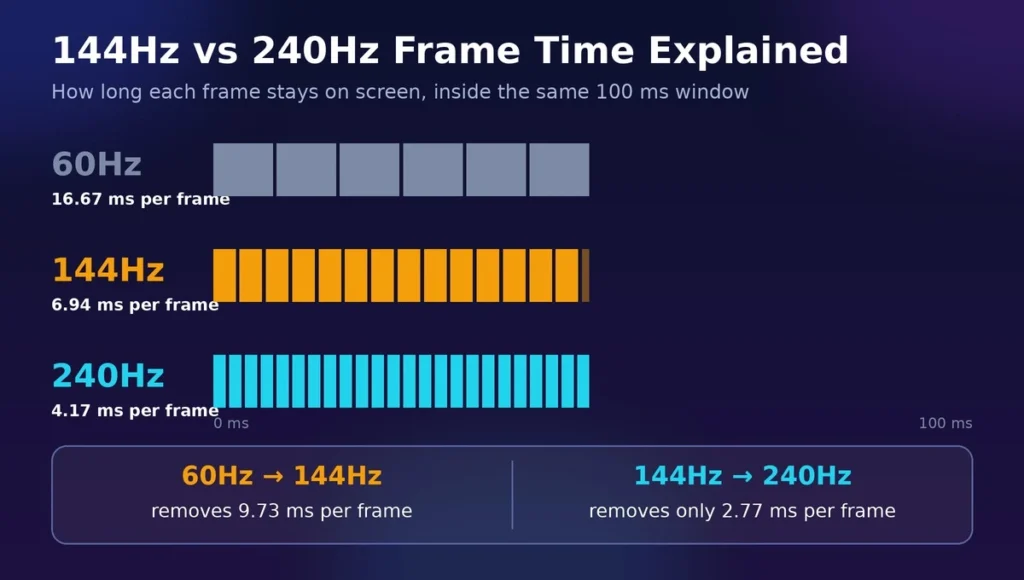
| Monitor | Frame Time | What It Means |
| 60Hz | 16.67 ms | The old standard, feels choppy in fast games |
| 144Hz | 6.94 ms | Very smooth, a big jump from 60Hz |
| 240Hz | 4.17 ms | Even smoother, but a smaller jump |
Going from 60Hz to 144Hz removes 9.73 ms of delay from every frame. Going from 144Hz to 240Hz removes only 2.77 ms. That is why the first upgrade feels like magic and the second one feels like a polish. It is called diminishing returns: you pay more for less improvement each time.
So is the 144Hz vs 240Hz difference real? Yes. It is just not twice as good. The 144Hz vs 240Hz frame time gap is small, and it only shows itself in fast motion, on a PC fast enough to feed it.
Motion Clarity: Why Hz Is Not the Whole Story
Here is what the top ranking articles do not tell you clearly: a bad 240Hz monitor can look worse in motion than a good 144Hz monitor. The reason is response time.
Response Time: The Other Half of Smoothness
Response time, or GtG (grey to grey), is how fast a pixel can change colour. Refresh rate is how often a new image arrives. If the pixel is too slow to change, the old image lingers and you see smearing or ghosting.
Think of it like a waiter bringing plates. Refresh rate is how fast new plates arrive. Response time is how fast the old plates get cleared. If plates arrive faster than they are cleared, they pile up. That pile up is ghosting.
Now remember the frame times. At 240Hz, a pixel has just 4.17 ms to finish changing before the next frame lands. Good 240Hz panels average roughly 2 to 4 ms across colour changes, which is fast enough. A cheap panel that averages 6 ms or more on dark changes cannot keep up, and its motion smears, no matter what the box promises. At 144Hz the window is a more forgiving 6.94 ms, which is why a well made 144Hz screen can look cleaner than a cheap 240Hz one.
GtG vs MPRT: Do Not Trust the “1 ms” Sticker
Brands quote the best case number they can find. A “1 ms” claim might be GtG measured on the single fastest colour change, or MPRT, which measures how long a frame stays visible and usually needs a flashing backlight mode to reach 1 ms. Look for reviews that test average GtG and overshoot across many transitions. That is the number your eyes will actually see.
Panel Type Matters More Than You Think
- Fast IPS: the safest choice for most gamers. Good colours, fast pixels, and low ghosting when overdrive is tuned well.
- VA: great contrast and deep blacks, but slow dark transitions can leave black trails behind moving characters. A cheap VA 240Hz is often worse in motion than a good IPS 144Hz.
- OLED: the king of motion clarity. Pixels respond almost instantly, as low as 0.03 ms on some models, so a 240Hz OLED looks cleaner than almost any LCD at the same refresh rate.
Overdrive, Overshoot and Strobing
Overdrive pushes pixels to change faster. Too little and you get ghosting. Too much and you get overshoot: bright halos around moving objects. On most monitors the medium overdrive setting looks cleanest, so try that before blaming the panel. Some monitors also offer backlight strobing (DyAc, ELMB or ULMB), which flashes the backlight in time with the refresh rate for strikingly sharp motion, at the cost of a dimmer picture and FreeSync or G-Sync usually switching off.
Frame Rates: Can Your PC Actually Use 240Hz?
This question decides everything. A 240Hz monitor cannot show 240 frames if your PC only makes 120. At 120 FPS on a 240Hz screen you are seeing 120 unique images. You paid for 240 and you are using half of it.
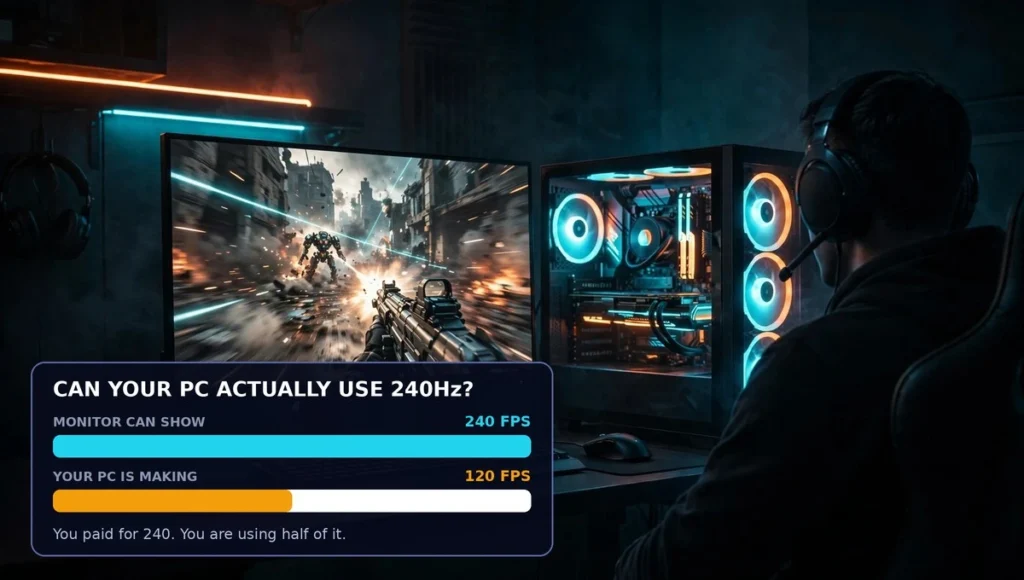
To use 144Hz fully you need around 144 FPS in your games. To use 240Hz properly you need a consistent 200 to 240 FPS. Here is what that looks like in real games at 1080p on competitive settings:
| Game | RTX 4060 / RX 7600 | RTX 4070 / RX 7800 XT |
| Valorant | 300+ FPS | 400+ FPS |
| CS2 | 250+ FPS | 350+ FPS |
| Fortnite (Performance Mode) | 200+ FPS | 280+ FPS |
| Apex Legends | 160 to 180 FPS | 220+ FPS |
| Warzone | 110 to 130 FPS | 160 to 180 FPS |
| Cyberpunk 2077 (low settings) | 60 to 80 FPS | 90 to 110 FPS |
Treat these as typical ranges, not promises. Your CPU, drivers and exact settings will move them up or down. The pattern is what matters: esports titles feed a 240Hz screen easily, while heavy story games and battle royales usually cannot.
So, is 240Hz a waste of money? For casual and single player gamers, often yes. You get more value from a 1440p 144Hz monitor with a sharper picture than from a 1080p 240Hz monitor you cannot fully use. For competitive esports players with the GPU to feed it, no. It is a real edge.
Should I cap FPS at 144 or 240?
If you use G-Sync or FreeSync, cap your FPS just below your refresh rate: around 141 FPS on a 144Hz monitor and around 237 FPS on a 240Hz monitor. This keeps you inside the sync range, stops tearing and keeps input lag low. Leaving FPS uncapped can shave off a tiny amount of lag, which is why serious esports players sometimes do it, but for everyone else it just makes the PC hotter and louder.
Input Lag: The Small Print
Input lag is the delay between your click and the result on screen, and a higher refresh rate shrinks one slice of it. In theory, the smallest display delay at the centre of the screen is about 3.47 ms at 144Hz and about 2.09 ms at 240Hz, a saving of roughly 1.4 ms. Pros gladly chase advantages that small. For everyone else, remember that your mouse, PC, game and display together usually add 20 to 50 ms, so keep the saving in proportion. Real, but small.
Which Players Benefit Most From 240Hz?
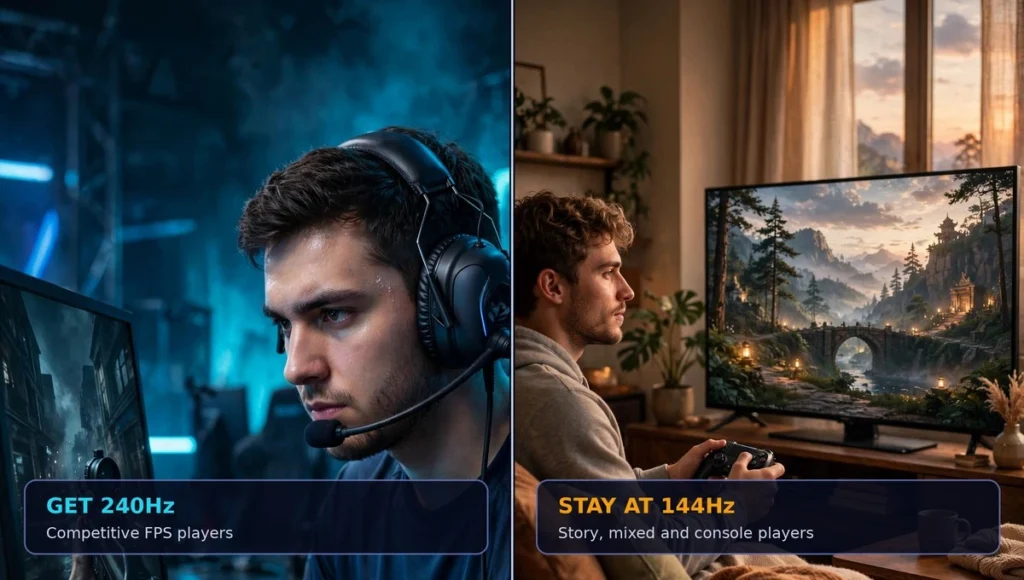
You Should Get 240Hz If:
- You are a competitive FPS player. You play Valorant, CS2, Overwatch 2 or Apex ranked, you care about tracking and flick shots, and your GPU already hits 240 FPS in those games. For you, the 2.77 ms edge is real.
- You already have a strong PC. An RTX 4070 class card or better at 1080p means your PC is ready and the monitor is the missing piece.
You Should Stay at 144Hz If:
- You play mixed games. A mix of shooters, story games and casual titles makes 144Hz the sweet spot for most gamers.
- You want better image quality. You would rather have 1440p resolution and better colours than a slightly smoother picture at 1080p. For most people this is the smarter spend.
- You play on console. The PS5 and Xbox Series X and S are capped at 120Hz, and only in supported games. A 240Hz monitor gives a console nothing extra. Save your money.
What About 165Hz and 180Hz?
This is the secret best value in 2026. Many 1440p monitors now come in 165Hz or 180Hz, and a frame at 180Hz lasts 5.56 ms, only 1.39 ms behind 240Hz. You get most of the smoothness, a sharper picture, and a lower price. If you are torn between the two camps, a 1440p 165Hz or 180Hz Fast IPS monitor is very hard to regret.
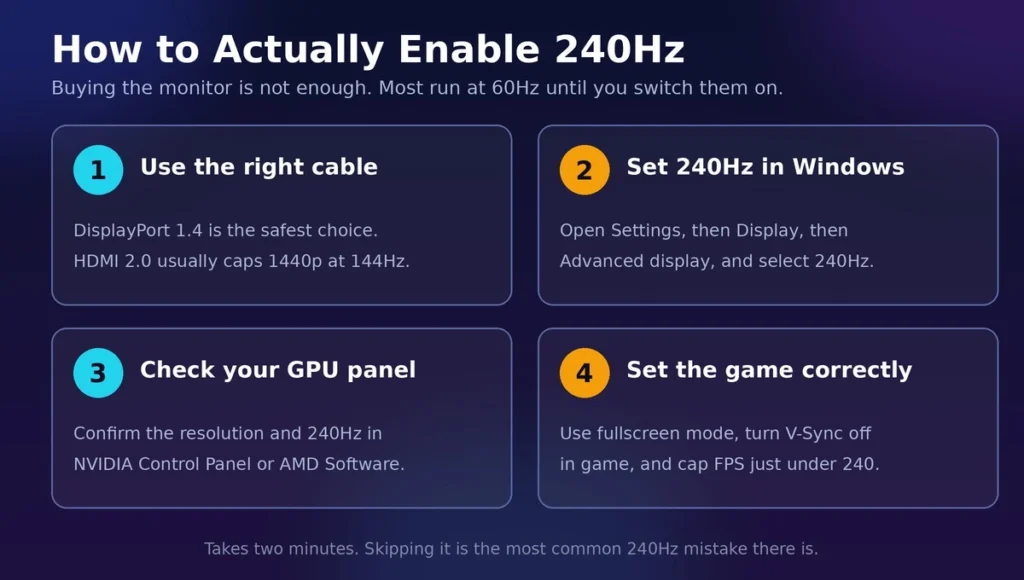
How to Actually Enable 240Hz (Most People Miss This)
Buying a 240Hz monitor is not enough. You have to turn it on.
- Use the right cable. DisplayPort 1.4 is the safest choice, and HDMI 2.1 works too. HDMI 2.0 can run 240Hz at 1080p, but at 1440p it usually caps at 144Hz, which is why so many people get stuck.
- Set it in Windows. Go to Settings, then Display, then Advanced Display, and select 240Hz under refresh rate. Many monitors run at 60Hz out of the box until you do this.
- Check your GPU panel. In the NVIDIA Control Panel or AMD Software, confirm the resolution and 240Hz are selected there as well.
- Set the game correctly. Use fullscreen mode, and if you use G-Sync or FreeSync, turn V-Sync off in the game and use the FPS cap described above.
144Hz vs 240Hz Gaming Monitor: Final Verdict
So, which one wins? For most gamers, a good 144Hz or 180Hz monitor at 1440p is the best buy in 2026. You get smooth gameplay, a sharper picture and money left over for the games themselves.
But if you are a serious competitive player whose PC can push 240 FPS in your main game, a 144Hz vs 240Hz gaming monitor comparison ends with 240Hz winning. The motion is cleaner, tracking is easier, and that small 2.77 ms edge can matter in a close duel. Don’t buy the number. Buy what your PC and your games can actually use.
FAQs – 144Hz vs 240Hz Gaming Monitor
Can you really tell the difference between 144Hz and 240Hz?
Yes, most people can in a side by side test on fast motion, but in normal gameplay the difference is subtle. The jump from 60Hz to 144Hz is huge. The jump from 144Hz to 240Hz is much smaller.
Is 240Hz a waste of money?
For casual, story or console gamers, usually yes, because your PC or console will not reach 240 FPS anyway. For competitive Valorant, CS2 or Fortnite players with a strong GPU, it is not a waste at all.
Should I cap FPS at 144 or 240?
If you have G-Sync or FreeSync, cap your FPS a few frames below your refresh rate: 237 FPS for a 240Hz monitor and 141 FPS for a 144Hz monitor. This gives the smoothest, tear free experience with low input lag.
Which 144Hz vs 240Hz gaming monitor should a beginner buy?
Start with 144Hz, or 165Hz or 180Hz if the price is close. You get the big smoothness jump for the least money, and it suits almost every game. Step up to 240Hz later, once shooters become your main thing.
What is the 144Hz vs 240Hz frame time difference?
144Hz has a frame time of 6.94 ms. 240Hz has a frame time of 4.17 ms. The difference is only 2.77 ms, which is why the improvement feels smaller than the jump from 60Hz to 144Hz.
Does 240Hz work on PS5 or Xbox?
No. The PS5 and Xbox Series X and S support a maximum of 120Hz, and only in supported games. A 240Hz monitor will work with them, but it will run at 120Hz. Buy 144Hz for console gaming and save the difference.
Do I need DisplayPort for 240Hz?
Not always. DisplayPort 1.4 is the safest choice for 240Hz, and HDMI 2.1 works too. HDMI 2.0 can run 240Hz at 1080p, but at 1440p it usually caps at 144Hz. Check your monitor’s ports before buying a cable.
Why is my 240Hz monitor only showing 144Hz?
It is usually the cable, the port or a setting. Use DisplayPort 1.4, then select 240Hz in Windows Advanced Display settings and in your NVIDIA or AMD panel. Also check the monitor’s own menu, as some models hide 240Hz behind an overclock setting.
Should I get 1080p 240Hz or 1440p 144Hz?
Get 1440p 144Hz if you play mixed games and want better image quality. Get 1080p 240Hz only if you are a competitive esports player who needs maximum FPS and smoothness above everything else.
Will 240Hz make me a better player?
No, not by itself. It makes tracking and reacting slightly easier, but aim, game sense and practice matter far more. Think of 240Hz as a small advantage that helps a good player, not a shortcut that creates one.