Sudden FPS Drops in Games: Fix It Fast (2026)
Sudden FPS drops in games are the worst kind of lag. One second you are at 120 FPS, smooth and in control. The next second you are at 30 FPS,…
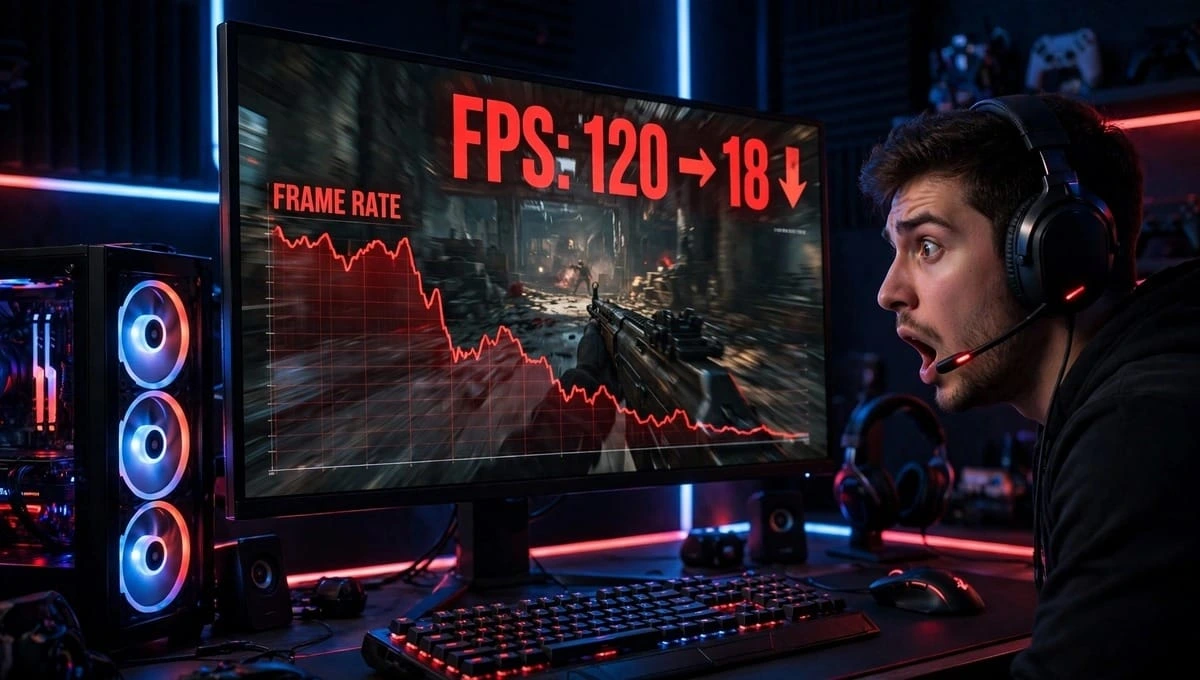
Sudden FPS drops in games are the worst kind of lag. One second you are at 120 FPS, smooth and in control. The next second you are at 30 FPS, 10 FPS, or even 0 FPS for 2-3 seconds, and you are dead before your screen catches up.
If this is happening to you, you are not alone. It happens on budget laptops and on expensive RTX PCs too. The good news is that most sudden drops have one clear cause, and once you find that cause, the fix is usually free and takes less than 10 minutes.
This guide will not give you a random list of 20 tips. It will help you diagnose your exact problem in 2 minutes, then fix it.
How to Diagnose Your sudden FPS Drops in games
Before you change any setting, answer this one question:
When does the drop happen?
Your answer tells you the cause:
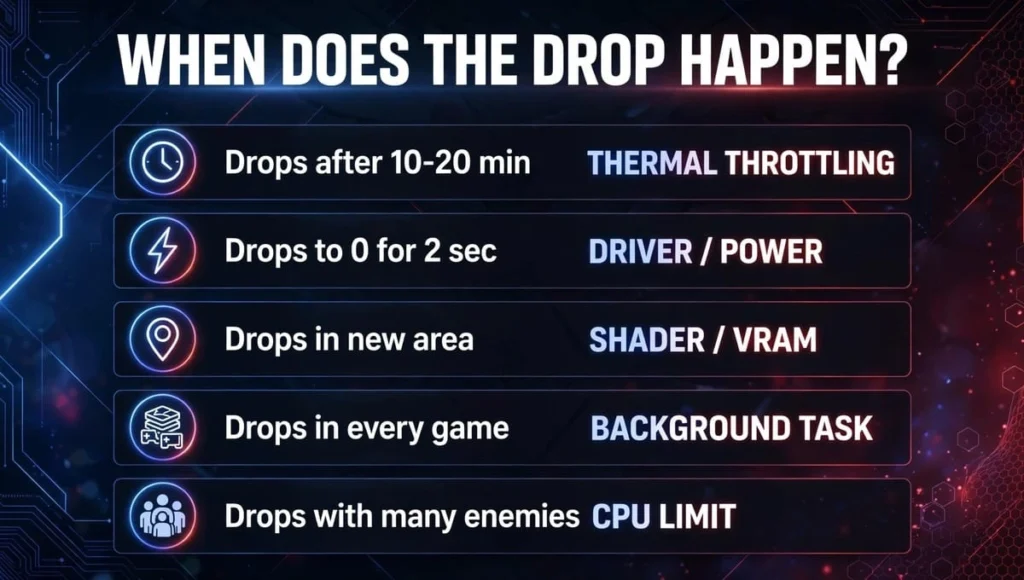
| Your Pattern | Most Likely Cause |
| FPS is good for 10-20 minutes, then drops and stays low | Thermal Throttling |
| FPS drops to 0 for 2 seconds, then jumps back up | Driver, Power, or Storage |
| FPS drops only in a new area or when you turn fast | Shader Compilation or VRAM |
| FPS drops in every game, even old games | Background Task or Windows Update |
| FPS drops only when many enemies or players appear | CPU Limit |
Keep this table in mind. Now let’s go through each cause properly.
1. Thermal Throttling: The #1 Reason for Sudden FPS Drops
What Is Thermal Throttling?
Your CPU and GPU are smart. When they get too hot, they slow themselves down to avoid damage. That slow-down is called thermal throttling, and it feels exactly like a sudden FPS drop.
This is why many gamers say, “My game runs fine at first, then after 15 minutes it becomes unplayable.” That is classic heat.
How to Check If Heat Is Your Problem
- Download a free tool like HWiNFO or MSI Afterburner.
- Turn on the on-screen overlay for CPU Temp and GPU Temp.
- Play for 20 minutes.
Danger zone:
- CPU: Above 90°C for a long time
- GPU: Above 85°C for a long time
If your temps are in this zone when FPS drops, you found your problem.
How to Fix Thermal Throttling
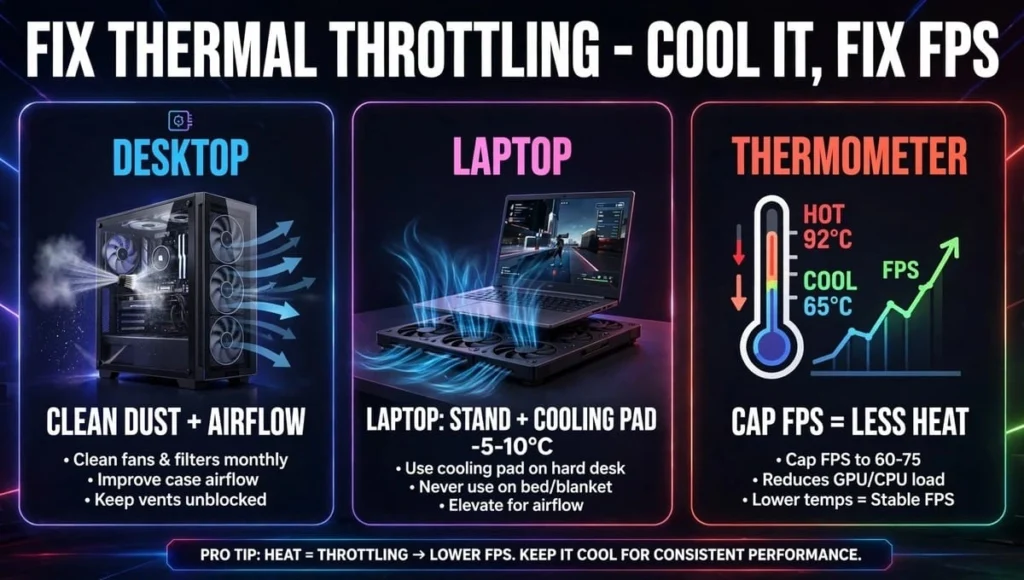
- For Desktop: Clean dust from fans with compressed air. Make sure your case has 2 fans in front for intake and 1 at back for exhaust. Do not keep your PC inside a closed cabinet.
- For Laptop: Always play on a hard, flat table. Never play on a bed or blanket, it blocks the air vents underneath. A simple laptop stand or cooling pad can drop temps by 5-10°C.
- For Old PCs: If your PC is 2+ years old, the thermal paste on CPU/GPU may be dried out. Re-pasting helps a lot, but get it done by someone experienced if you have never opened a PC.
- Quick Fix: In your game, cap your FPS to your monitor refresh rate (for example, 60 FPS on a 60Hz monitor). Uncapped FPS = extra heat for no benefit.
2. CPU Limits: When Your Processor Can’t Keep Up
Why CPU Causes Random FPS Drops in All Games
Your GPU draws the picture, but your CPU tells it what to draw. When 20 enemies, explosions, physics, and voice chat all happen at once, the CPU gets overloaded.
This is the main reason for sudden frame drops on good PC setups. You can have an RTX 4070, but if your CPU is weak or busy, your FPS will still drop.
Signs You Are CPU-Limited
- GPU usage is only 40-60% but FPS is low
- FPS drops when you enter a city, a big fight, or a crowded lobby
- Your game stutters even on Low graphics settings
Lowering graphics will NOT help here, because graphics are GPU work. You need to lower CPU work.
How to Fix CPU Bottlenecks
Lower CPU-Heavy Settings First
Go to your game settings and lower these first:
- View Distance / Draw Distance: Medium
- Crowd Density / Population: Low
- Physics / Particles: Low
- Shadows: Low or Medium
Turn On The Right Tech
If your game supports it, turn on DLSS, FSR, or XeSS. These lower GPU load and can help the CPU keep up, especially in CPU-heavy open-world games.
3. Outdated or Broken Drivers: The Silent FPS Killer
Drivers are the translators between Windows and your GPU. If the translator is broken, everything stutters.
A bad driver update is one of the most common reasons for random FPS drops in all games after a Windows Update.
How to Fix Drivers Properly (Don’t Just Click Update)
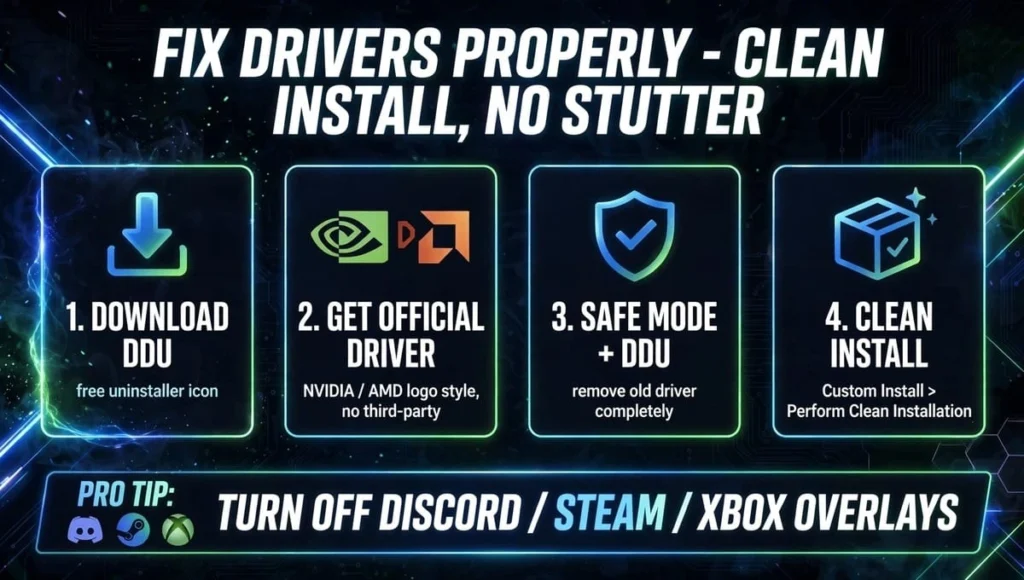
A normal “Update Driver” often leaves old broken files behind. Do a clean install:
- Download DDU (Display Driver Uninstaller) it is free.
- Download the latest driver from NVIDIA or AMD’s official site (not from a third-party driver updater).
- Boot into Safe Mode, run DDU to remove the old driver completely.
- Install the new driver you downloaded. Choose Custom Install > Perform Clean Installation.
Pro Tip: If your FPS drops started right after a driver update, roll back to the previous driver. Newest does not always mean best for your specific game.
Also check this: Turn off Discord Overlay, Steam Overlay, and Xbox Game Bar for one session. Overlays fight for GPU time and can cause games stuttering despite high FPS.
4. Shader Compilation Stutter: Why New Games Stutter at First
This is the cause almost no old article explains well, but it is huge.
What Are Shaders?
Modern games like Fortnite, Warzone, and Hogwarts Legacy need to “prepare” how light, shadows, and effects will look on your PC. This preparation is called shader compilation.
If the game did not finish this preparation, it will freeze for a second every time you see a new effect. Your average FPS might show 120 FPS, but the game feels terrible. This is exactly why you get games stuttering despite high FPS.
How to Fix Shader Stutter
- Let the game finish: When a game says “Compiling Shaders” on first launch, let it finish 100%. Do not skip it.
- Clear Corrupted Cache: If stutter started suddenly, your shader cache is corrupted. Go to Windows Disk Cleanup > Select C: Drive > Tick DirectX Shader Cache > OK. Restart the game, it will rebuild shaders cleanly.
- Don’t delete shaders every day: Some “PC cleaners” delete shader cache daily. That makes stutter worse. Let it stay.
5. Background Tasks: The Invisible FPS Thief
This is the easiest fix, and the most ignored.
Windows is not just running your game. It is also running Chrome, Discord, Windows Update, antivirus scans, RGB software, and 20 other things in the background.
On a PC with 16GB RAM or less, one Chrome window with 10 tabs can steal 15-20% of your CPU.
How to Fix Background Tasks
The 1-Minute Check Before Every Match
- Press Ctrl + Shift + Esc to open Task Manager.
- Click CPU to sort by highest usage.
- Close anything using high CPU that is not your game especially Chrome, Edge, OBS (if not streaming), and updaters.
- In Task Manager > Startup, disable apps you don’t need at startup.
Stop Windows From Ruining Your Game
- Go to Settings > Windows Update and pause updates during your gaming session.
- Go to Settings > Gaming > Game Mode and turn it ON. This tells Windows to stop background updates while you play.
- Set your Power Plan to High Performance (Control Panel > Power Options). On Balanced mode, your CPU downclocks during quiet moments, then struggles when action starts.
6. VRAM, RAM, and Storage: The 3 Quick Checks
If the fixes above did not work, check these three in 30 seconds:
- VRAM Full?
If you play on Ultra Textures with an 8GB GPU, VRAM will fill up and FPS will drop instantly. Set Textures to High or Medium. It looks almost the same but saves 2-3GB VRAM. - RAM in Single Channel?
If you have 1 stick of 16GB RAM instead of 2 sticks of 8GB, you lose 15-20% FPS in many games. Dual-channel is always better for gaming. Also turn on XMP / EXPO in BIOS so your RAM runs at its advertised speed, not slow default speed. - Game on HDD?
Modern games constantly stream textures from storage. If your game is on an old HDD, you will stutter every time you enter a new area. Move AAA games to an NVMe SSD. Keep at least 15% free space on your SSD.
The Final 5-Minute Fix Order
If you don’t know where to start, follow this exact order to learn how to fix FPS drop in games without wasting hours:
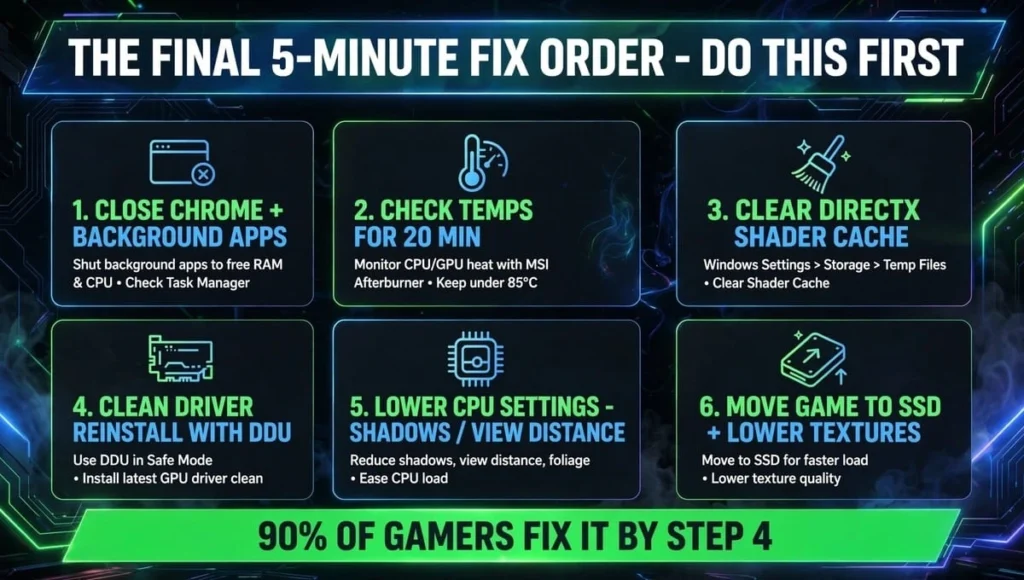
- Close Chrome and background apps
- Check temps for 20 minutes
- Clear DirectX Shader Cache
- Do a clean driver reinstall with DDU
- Lower CPU-heavy settings (Shadows, View Distance)
- Move game to SSD and lower Textures if VRAM is full
90% of gamers fix their problem by step 4.
FAQs – Sudden FPS Drops in Games
Why does my FPS drop suddenly from 120 to 30 and then go back up?
This is usually thermal throttling or a background task spike. Check your temps with an overlay and close Chrome and Windows Update. If it drops to 0 for 2 seconds, it is often a driver or storage issue.
Why do I get sudden frame drops on good PC with RTX GPU?
A good GPU does not guarantee smooth FPS. Your CPU, heat, RAM, or drivers can bottleneck it. If your GPU usage is below 70% but FPS is low, you are CPU-limited, not GPU-limited.
Why are my games stuttering despite high FPS?
High average FPS with stutter means your 1% lows are bad. This is usually shader compilation stutter, VRAM full, or game on a slow HDD. Clear shader cache and lower textures to fix it.
Why do I get random FPS drops in all games, even old games?
If it happens in all games, it is a system problem, not a game problem. Check for a recent Windows or driver update, background apps, overheating, or a failing PSU. Do a clean boot test to confirm.
How to fix FPS drop in games without buying new hardware?
Close background apps, clean dust, cap FPS to your monitor refresh rate, do a clean driver install, lower CPU-heavy settings, and enable Game Mode. Most drops are fixed with these free steps.
Is it normal for FPS to drop in crowded areas?
Yes, a small drop is normal. More players and effects mean more CPU work. A drop of 10-20% is normal. A drop of 50% or more means you are CPU-limited and should lower View Distance and Crowd Density.
Why does my FPS drop after a Windows update?
Windows updates can reset power plans, reinstall bad GPU drivers, or turn on Memory Integrity (VBS) which costs 5-10% FPS. Roll back the driver, set High Performance plan, and check Game Mode after an update.
Why does my FPS drop only on laptop when unplugged?
Laptops limit CPU and GPU power on battery to save charge. Always play plugged in. Also set Windows power mode to Best Performance when plugged in and check your laptop’s gaming software for a Performance mode.
Conclusion – Sudden FPS Drops in Games
Sudden FPS drops in games feel scary, but they are almost never a sign that your PC is dead. They are a sign that one part of your PC heat, CPU, driver, shaders, or a background app is asking for help.
Don’t try 20 fixes at once. Diagnose first: When does it drop? Then fix that one cause.
Start with the free fixes today close background apps, check your temps, and clean your drivers. For most gamers, that alone brings back smooth, stable FPS and makes gaming fun again.
If your FPS is still dropping after all this, tell us your specs, your game, and when exactly the drop happens. That one detail is enough to find the real fix.