Passkeys vs Passwords: Which Is Safer and Easier?
Your phone keeps offering to create a passkey, your bank mentions one at login, and Google already made one for your account. Sooner or later everyone asks the same question…
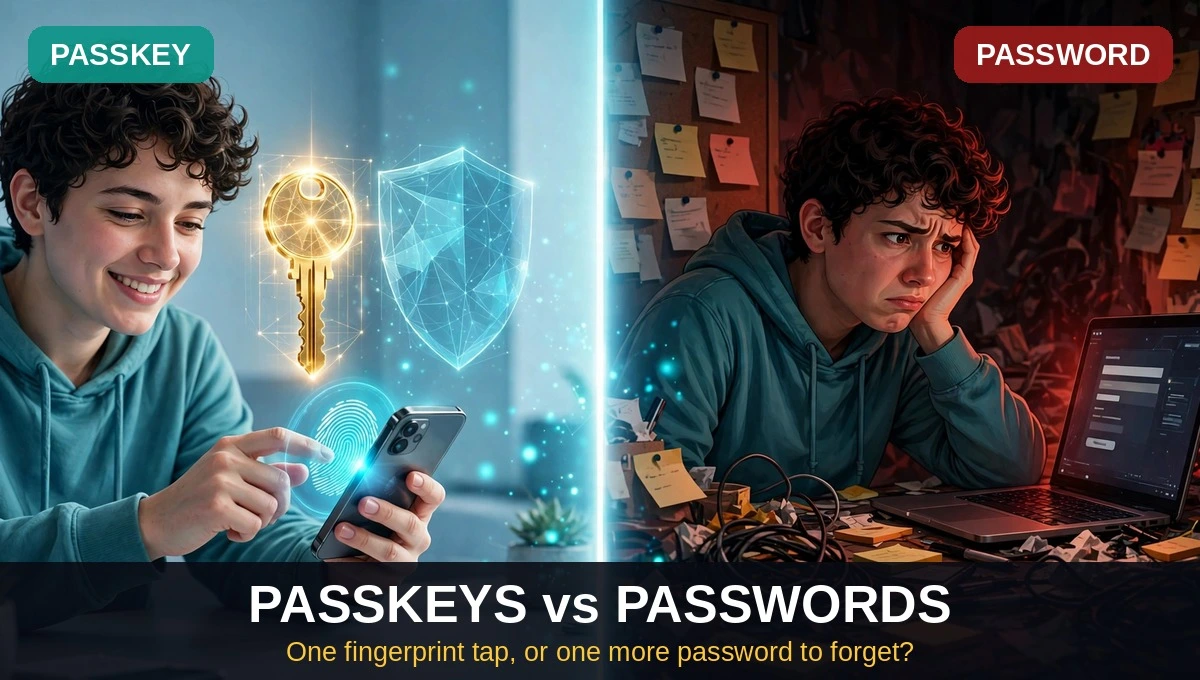
Your phone keeps offering to create a passkey, your bank mentions one at login, and Google already made one for your account. Sooner or later everyone asks the same question about passkeys vs passwords: is the new thing really better, or is it just another change to learn?
This guide answers that in plain words. It compares how the two logins work, why one of them shrugs off phishing, how passkeys follow you from device to device, and the question people worry about most: what happens to your accounts if you lose your phone.
The Short Answer – Passkeys vs Passwords ?
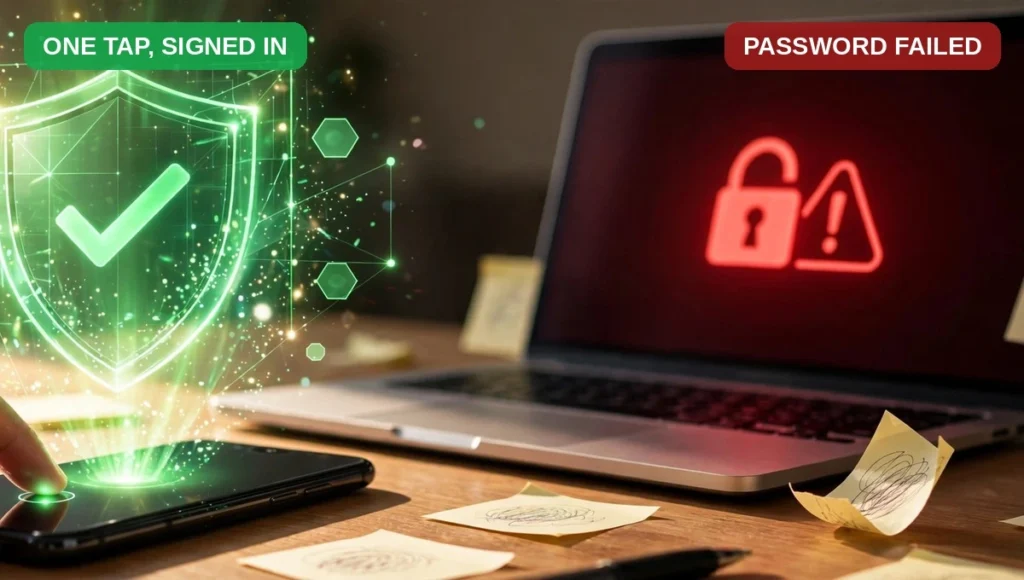
If a website offers you a passkey, take it. A passkey is safer than a password because there is no secret to steal, guess, reuse or type into a fake page, and it is faster because a fingerprint or face scan replaces all that typing. Passwords are not dead yet, because many sites still do not offer passkeys, and your password is usually kept as a backup.
The smart setup for now is both: passkeys wherever they are offered, and a password manager with two factor authentication for everything else.
What Is a Password, and What Is a Passkey?
A password is a secret you invent and remember. You and the website both hold a version of it. When you log in, you type the secret, the site checks it against the copy it stored, and the match lets you in. Everything about a password depends on you: choosing a strong one, never reusing it, spotting fake login pages, and remembering it months later.
A passkey works in the opposite way. When you create one, your device builds a pair of linked keys. One key is public and goes to the website, where it is useless on its own. The other key is private and never leaves your phone, computer or password manager. At login, the website sends your device a one time challenge, your device unlocks the private key with your fingerprint, face or PIN, signs the challenge, and sends the signature back. The website checks the signature against the public key. No secret is typed, sent or stored on the site, which is why so many password problems simply cannot happen.
It is the same privacy idea behind running AI models locally on a PC: the part that matters stays on your own device instead of travelling to someone else’s server.
Passkeys are built on open standards called FIDO2 and WebAuthn, supported by Apple, Google and Microsoft, so this is not one company’s experiment. Google says passkeys have already been used more than a billion times across 400 million Google accounts, and the FIDO Alliance reports a 93 percent sign-in success rate, which means the tap usually works first time.
Passkeys vs Passwords at a Glance
| Feature | Passkey | Password |
|---|---|---|
| What it is | A key pair made by your device | A secret you invent and remember |
| What the website stores | A public key that is useless alone | A scrambled copy of your secret |
| Phishing | Cannot be typed into a fake site | Easy to steal on a lookalike page |
| Data breach at the website | Leaks public keys, which cannot log anyone in | Leaks password copies that can be cracked |
| Reuse across sites | Impossible, every site gets its own key | Common, and one leak unlocks many accounts |
| Guessing and brute force | Nothing to guess | Weak passwords fall fast |
| How you log in | Fingerprint, face scan or PIN | Typing, or autofill from a manager |
| Login speed | About 2 to 3 seconds | Around 12 to 15 seconds typed, plus a code |
| Works on every site | Not yet, support is growing | Yes, everywhere |
| If you lose your device | Synced passkeys return on a new device | Nothing to lose, you can reset by email |
| Sharing with family | Limited, depends on the manager | Easy to share, which is also a risk |
Passkey vs Password Security: Why Phishing Fails
Most account takeovers do not start with a genius hacker. They start with a fake login page, a reused password, or a database leak. This is where passkey vs password security stops being a close contest, because a passkey was designed to remove all three doors at once.
Can passkeys be phished?
No, and the reason is mechanical, not a promise. A passkey is tied to the exact website address it was created for. If a scam email sends you to a copy of your bank at a slightly different address, your device checks the address, finds no passkey registered for it, and offers nothing. There is no code to type and no secret to hand over, so even a tired person in a hurry cannot give away what they never see. A password has no such protection. It works on any page that asks for it, real or fake, which is why phishing pages are built to look perfect.
Two factor codes help passwords, but they can still be relayed. A convincing fake page can ask for your password and then your code, and pass both to the real site within seconds. A passkey cannot be relayed in this way, because the signature it produces is only valid for the real address and for that single login attempt. Security bodies have noticed the difference. The UK National Cyber Security Centre now recommends passkeys wherever a service offers them, and classes them as phishing resistant, while passwords and text message codes are not.
What a data breach leaks
When a website that uses passwords is breached, attackers walk away with scrambled copies of everyone’s passwords and crack the weak and reused ones at their leisure. One leak then gets tried against email, banking and shopping accounts in bulk, an attack called credential stuffing. When a website that uses passkeys is breached, attackers get public keys. A public key cannot sign you in and cannot be turned back into the private key, so the leak gives them nothing they can use. Your name and email might still leak, but your login does not.
Are passkeys safer than passwords?
Yes, on every attack that actually empties accounts. People ask are passkeys safer than passwords because the change feels small, just a fingerprint instead of typing. Underneath, the difference is total: nothing to phish, nothing worth stealing from the website, nothing to reuse, and nothing to guess. The honest limits are different ones.
A passkey protects the login, not the whole device, so a stolen phone with a weak screen PIN, or malware on an unlocked computer, is still a problem. And if the website keeps a weak recovery route, such as a reset link sent to an unsecured email account, an attacker will aim at that door instead. A passkey raises the wall; your recovery settings decide whether there is a gap left in it.
Device Synchronization: One Passkey, All Your Devices
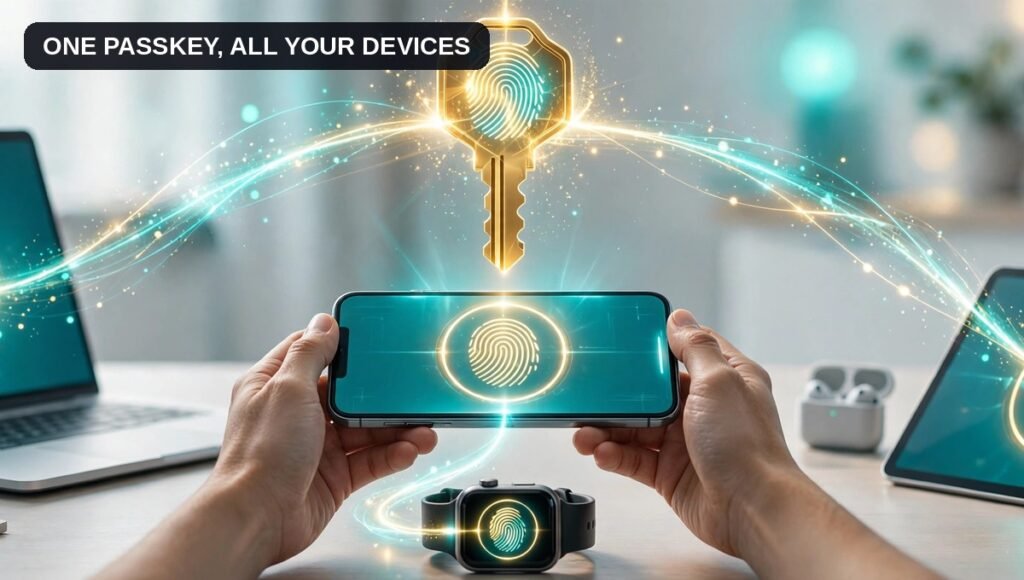
The second big question people ask is practical: if the passkey lives on your phone, how do you sign in on your laptop, your tablet and your work computer? The answer depends on which of the two kinds of passkey you have.
Synced passkeys
Most passkeys you create today are synced. Apple stores them in iCloud Keychain, Google stores them in Google Password Manager, and password managers such as Bitwarden, 1Password and Proton Pass store them in your vault. Create a passkey once and it appears on every device signed in to the same account, ready to use.
Signing in on a computer that does not have your passkey yet is also covered: the site shows a QR code, you scan it with your phone, and the phone approves the login over a secure nearby connection. Nothing needs to be set up device by device.
Device bound passkeys
A device bound passkey lives on one piece of hardware only and never copies anywhere. Hardware security keys work this way on purpose, and some work setups choose it too. It is the strictest option, and the riskiest for everyday life, because losing that one device means losing that passkey with it. For personal accounts, a synced passkey inside an account you protect well is the better balance for almost everyone.
Switching between Apple, Google and Microsoft
The fair criticism of synced passkeys is lock in. A passkey collection built inside iCloud does not simply pour into Google Password Manager, and moving between phone platforms still takes manual work, passkey by passkey, on many services.
The FIDO Alliance has published a standard for moving credentials between providers, and support is arriving slowly. For now, a password manager that runs on every platform is the easiest way to keep your passkeys portable, because the vault follows you whatever phone or computer you buy next.
It is the same standards puzzle the smart home world is untangling, as our Matter vs Zigbee vs Thread comparison shows.
Account Recovery: What Happens If You Lose Your Phone
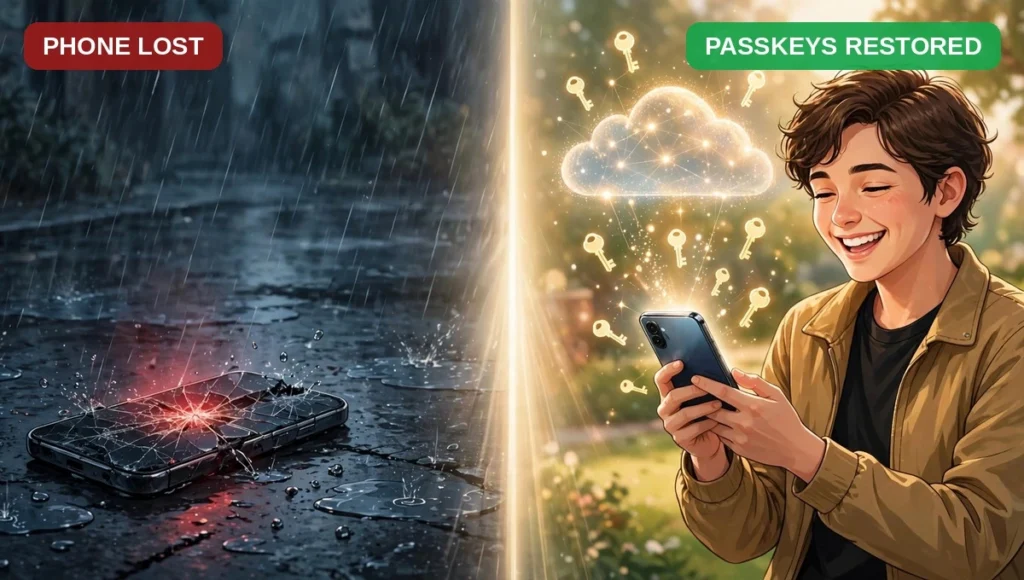
This is the section the big guides rush past, and it is the one that decides whether passkeys feel safe or scary. The answer is calmer than most people fear, as long as you know which kind of passkey you have.
If your passkeys are synced, a lost phone costs you almost nothing
Buy a new phone, sign in to the same Apple or Google account, and your passkeys come back with everything else, because the copy in your cloud keychain was never only on the lost device. The real thing to protect is that platform account itself, since it is now the master key to your logins. Give it a strong password, turn on its own two factor authentication, and add a recovery method you control. Do that and a lost phone is an annoying afternoon, not a lost life online.
If a passkey was device bound, that one passkey is gone
A passkey that lived only on the lost phone or on a lost hardware key cannot be recreated, because the private key existed in one place only. You then fall back on whatever recovery the website offers, and you register a fresh passkey once you are back in. This is why the standard advice is simple: for important accounts, register a passkey on two devices, for example your phone and your laptop, or keep one in a synced manager as well. Two copies turn a disaster into a shrug.
Can you fall back to your password?
Usually, yes. Most services that add passkeys keep your password active as a backup sign in method, and many people keep that password stored in their password manager for exactly this situation. That is convenient, and it is also the catch the security experts point at: your account is only as strong as its weakest way back in.
If you keep the password, keep it strong and unique, and protect the email account that receives reset links, because that inbox is now part of your security whether you planned it or not.
Four habits that make recovery boring
- Use synced passkeys for personal accounts, in iCloud Keychain, Google Password Manager or a password manager.
- Register a second passkey on another device for your email, bank and main accounts.
- Protect the Apple, Google or manager account itself with a strong password and two factor authentication.
- Save any recovery codes a service gives you somewhere offline, not in a photo on the same phone.
How to Set Up Your First Passkey
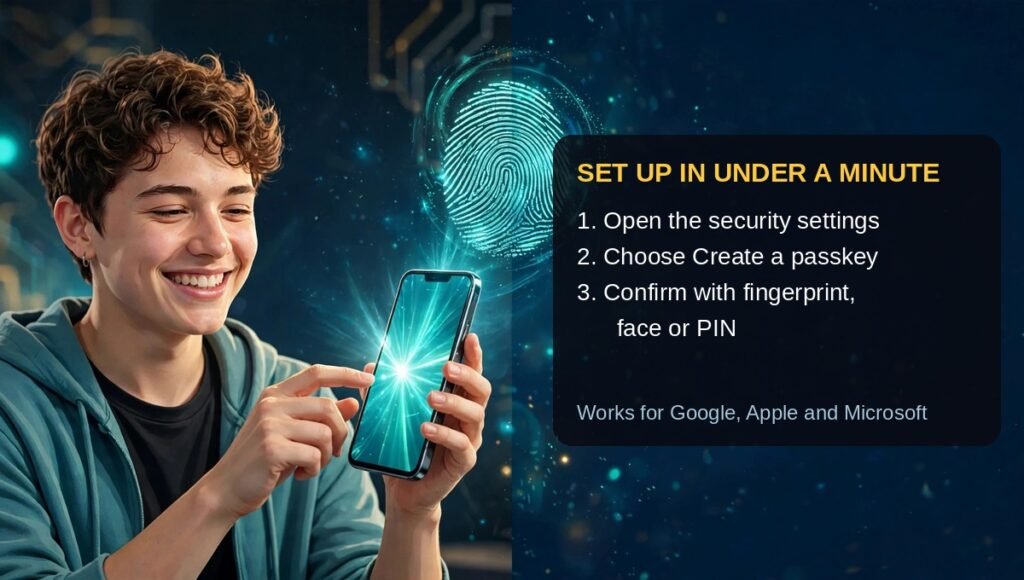
Creating a passkey takes under a minute, and the steps are nearly identical everywhere: open the account’s security settings, choose to add a passkey, and confirm with your fingerprint, face or PIN. Start with the account that guards all the others, your email.
Knowing exactly what your hardware supports is half the job, the same lesson as checking laptop USB-C video output support before trusting a port that looks like every other port.
Before you start
Make sure your phone and computer are updated, and that you are signed in to your platform account on both. On Apple devices, iCloud Keychain needs to be on. On Android and Chrome, Google Password Manager does the storing. On Windows, Windows Hello handles the confirmation.
Sign in at myaccount.google.com, open Security, and look for Passkeys and security keys. Choose Create a passkey and confirm with your fingerprint, face or PIN. The passkey saves to Google Password Manager and syncs to your other signed in devices.
And if that Android phone is running low on space, our guide to free up storage on Android clears room without deleting your photos.
Apple
On an iPhone or Mac, passkeys are created inside each app or website’s sign in settings, then saved to iCloud Keychain automatically. They appear on every Apple device using the same Apple account, and you confirm each login with Face ID, Touch ID or your device passcode.
Microsoft
Open your Microsoft account security page and choose the option to add a new way to sign in, then select the passkey option (face, fingerprint or PIN). The passkey is stored with Windows Hello on a PC, or in your chosen manager, and works across Microsoft services.
That includes your Xbox account, where our Xbox cloud gaming guide shows how far your Microsoft sign in now reaches.
The Honest Downsides of Passkeys
A fair comparison admits where the new option still stumbles. Not every site offers passkeys yet, and some big services support them on phones but not on the web, or the other way round. Older phones and computers without fingerprint or face unlock may not be able to create them at all. Shared family computers are awkward, because a passkey unlocked by a PIN everyone knows is only as safe as that PIN.
Handing a login to a family member is also less simple than reading out a password, although Apple and the bigger managers now allow passkey sharing inside a family group or shared vault. And there is a learning curve: the first few passkey prompts confuse people, because nothing looks like a login they recognise. None of these are reasons to avoid passkeys. They are reasons the change is gradual rather than instant.
Will Passkeys Replace Passwords?
Not this year, and probably not completely for a long time. The direction is clear, though. The biggest platforms already default to passkeys, the UK security authorities recommend them over passwords plus codes, and every month more banks, shops and services add the option.
People asking will passkeys replace passwords usually mean “should I bother learning this”, and the answer is yes, because the accounts that matter most to you are exactly the ones adding passkeys first. Passwords will linger as the fallback, on older systems, shared accounts and services that move slowly, much as cheques lingered long after cards arrived. Expect a long hybrid period: passkeys in front, passwords behind them, and a manager keeping order.
FAQs – Passkeys vs Passwords
What is the difference between a passkey and a password?
In passkeys vs passwords, the difference is simple. A password is a secret you invent and type, and the website stores a copy to check. A passkey is a key pair your device creates: the private half never leaves it, and you log in by fingerprint or face scan.
Are passkeys safer than passwords?
Yes. A passkey cannot be phished, guessed, reused on other sites or turned into a login if the website is breached, because the website only stores a public key. A password can suffer all four fates. Passkeys still rely on you keeping your device and recovery options secure.
Can passkeys be phished?
No. Each passkey is locked to the exact website address it was created for. On a fake lookalike page, your device finds no matching passkey and offers nothing, so there is no secret to type or hand over. This is the single biggest security gain passkeys have over passwords.
What happens if I lose my phone with my passkeys on it?
If your passkeys sync through iCloud Keychain, Google Password Manager or a password manager, you lose nothing: sign in on a new device and they return. A device bound passkey is gone with the phone, and you recover the account through the website, then register a fresh passkey.
Do passkeys work on multiple devices, or do I set up each device separately?
Synced passkeys work on every device signed in to the same Apple, Google or manager account, with no separate setup. On a computer without your passkey, scan a QR code with your phone to approve the login. Only device bound passkeys are set up one device at a time.
Can I fall back to a password saved in my manager if a passkey stops working?
Usually yes, because most services keep your password active as a backup sign in method alongside the passkey. Keep that password strong and unique in your manager, and protect the email account used for resets, since the fallback route is only as safe as you make it.
Will passkeys replace passwords completely?
Not soon. Passkeys are becoming the default on major platforms, but passwords remain as backups and on older services that have not added passkeys vs passwords support. Expect a long hybrid period where you use passkeys on important accounts and a password manager handles the rest.
Do passkeys replace two factor authentication?
A passkey already combines two factors in one tap: something you have, the device holding the private key, and something you are or know, the fingerprint, face or PIN that unlocks it. Most services treat a passkeys vs passwords login as fully verified and do not ask for a separate code.
Do I still need a password manager if I use passkeys?
For now, yes. Many sites still only accept passwords, and a manager stores those safely while also holding your passkeys in one vault that works across Apple, Google and Microsoft devices. It is also the easiest way to keep passkeys vs passwords portable if you switch phone platforms later.
Can passkeys be hacked or leaked in a data breach?
A website breach leaks only public keys, which cannot sign anyone in and cannot be reversed into private keys. Passkeys are still at risk if your device is compromised by malware, or if an attacker takes over the cloud account holding your synced passkeys vs passwords, so protect both.
Can I share a passkey with my family, like I share a password?
Sometimes. Apple lets you share passkeys with a family group through iCloud Keychain, and managers such as 1Password and Bitwarden let you place a passkey in a shared vault. It is less casual than reading out a passkeys vs passwords, which is deliberate, but shared accounts at home are covered.
What should I do on websites that do not offer passkeys yet?
Keep using a strong, unique password stored in a password manager, and turn on two factor authentication, ideally an authenticator app rather than text message codes. Check the site’s security settings every few months, because passkeys vs passwords support is being added quietly all the time.
Final Verdict: Passkeys Vs Passwords
The debate about passkeys vs passwords settles once you see what each one asks of you. A password asks you to invent, remember, guard and correctly judge every login page for the rest of your life, and it only takes one mistake on one fake page to lose an account.
A passkey asks you to tap your fingerprint, while your device handles the secret, checks the website is genuine, and keeps a synced copy safe for the day your phone disappears. Use passkeys on every account that offers them, starting with your email and bank, keep a manager and strong passwords for the rest, and the question of passkeys vs passwords stops being a debate and becomes a routine.