Free Up Storage on Android – Without Deleting Photos
Is your phone saying “Storage Almost Full” again? You try to take a photo, and it fails. You try to update WhatsApp, and it fails. It’s frustrating. The good news…
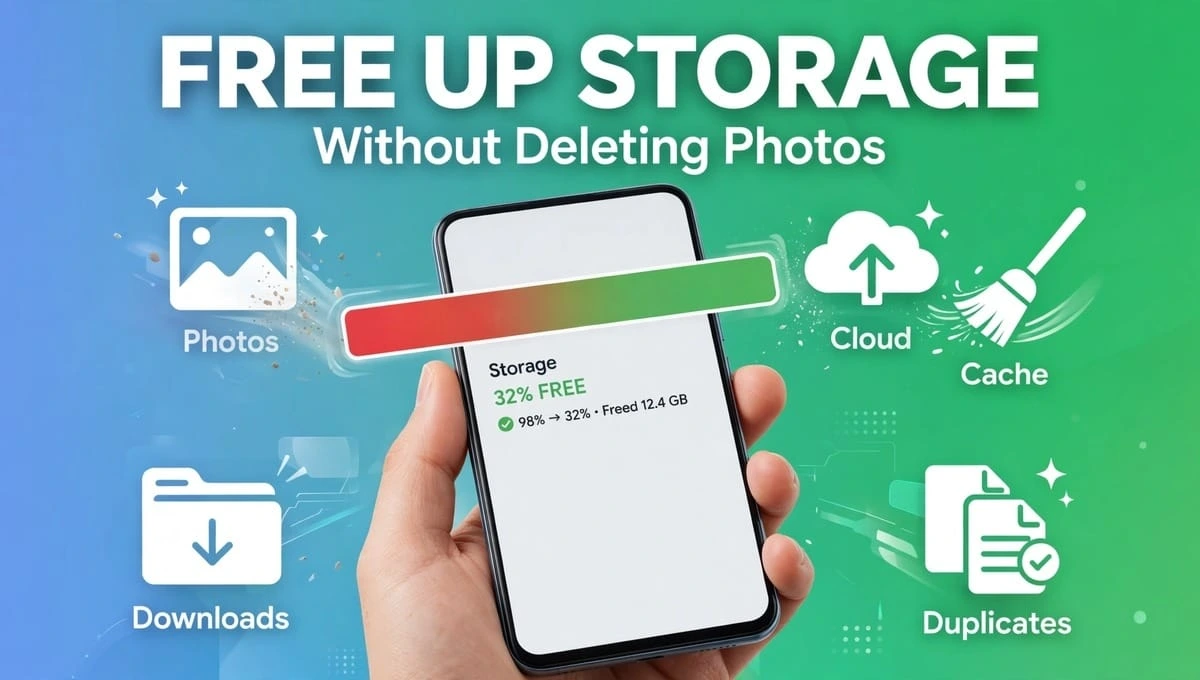
Is your phone saying “Storage Almost Full” again? You try to take a photo, and it fails. You try to update WhatsApp, and it fails. It’s frustrating.
The good news is, you can free up storage on Android without deleting your precious photos. Most phones are not full because of your photos. They are full because of hidden junk: app caches, old downloads, duplicate files, and offline videos you forgot about.
In this guide, I will show you exactly how to free up space on android phone in 15 minutes. We will cover how to clear internal storage on android safely, how to use the Android Storage Manager, and how to Clear system storage that you didn’t even know existed. This works for Samsung, Pixel, Xiaomi, Vivo, and Oppo.
Quick Answer: Where Is Your Space Going?
Before you delete anything, check this first. This is the step 90% of people skip.
For Samsung Users:
Go to Settings > Battery and device care > Storage
For Pixel & Other Android Users:
Go to Settings > Storage
You will see a breakdown: Apps, Images, Videos, Audio, Documents, and System. Note down the biggest category. That is where we will start. Don’t guess. Measure first.
1. Clear App Cache – The Safest 2-5 GB You Will Ever Free
App cache is temporary data. Apps like Instagram, Chrome, YouTube, and TikTok save it to open faster next time. Over months, it becomes 3GB, 5GB, even 8GB.
Clearing cache is 100% safe. It will NOT delete your photos, logins, or chats.
How to Clear Cache For Big Apps
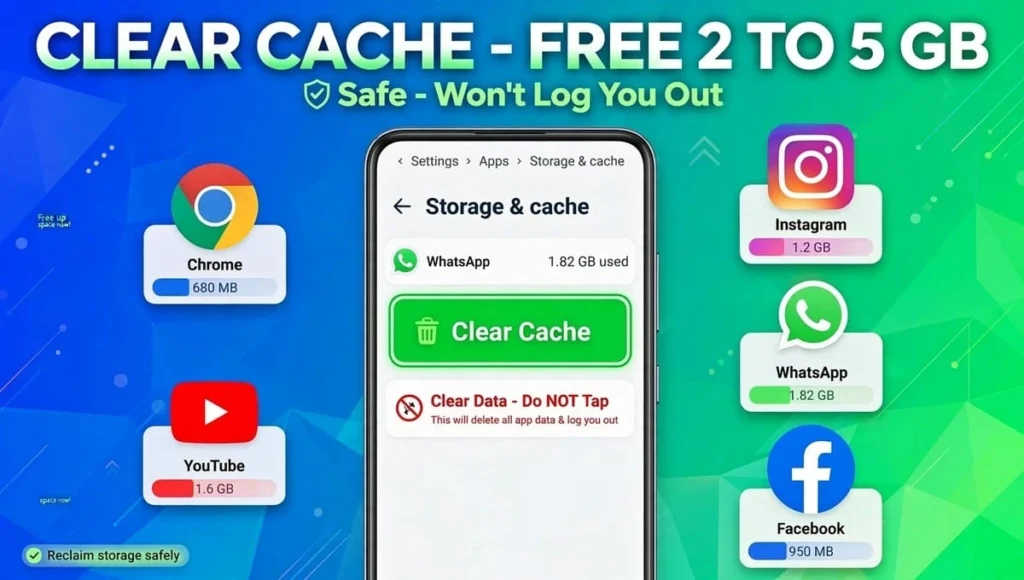
- Go to Settings > Apps > See all apps
- Tap Sort by Storage used (on Samsung, tap the filter icon)
- Open the top 5 apps – usually Chrome, Instagram, WhatsApp, YouTube, Facebook
- Tap Storage & cache > Clear cache
Do NOT tap “Clear data” or “Clear storage” here. That is different. Clear cache = safe. Clear data = app will reset and log you out.
Do this for your top 10 apps, and you will easily free up 2 to 5 GB.
2. Delete Downloads & Offline Downloads You Forgot About
Your Downloads folder is a graveyard. Old PDFs, APKs, memes, and WhatsApp documents live there forever.
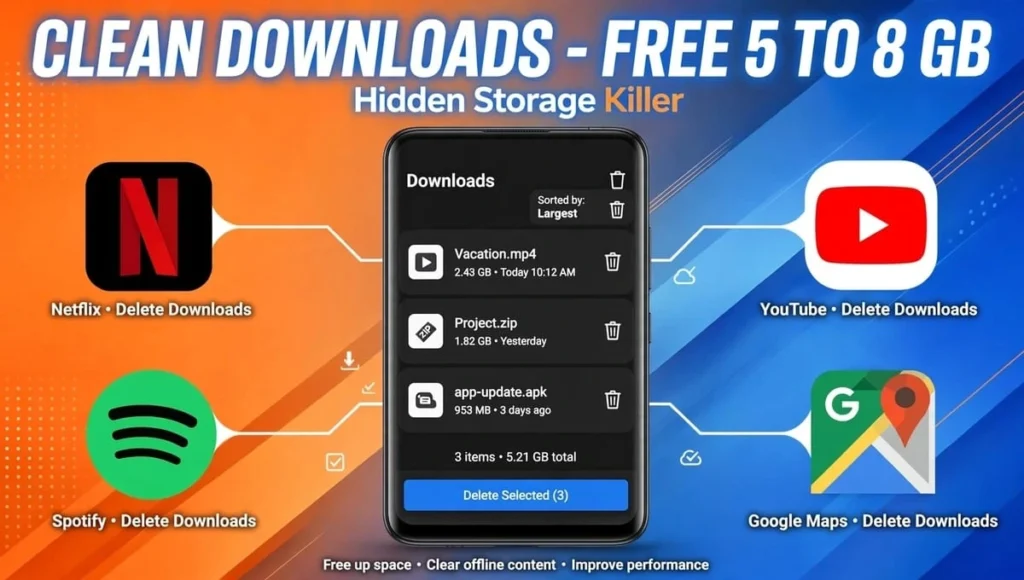
Clean Your Downloads Folder
- Open Files by Google or My Files (Samsung)
- Tap Downloads
- Sort by Largest first
- Delete big videos, old ZIP files, and duplicate APKs
Clean Offline Downloads Inside Apps
This is the hidden killer. Netflix, Spotify, YouTube, and Google Maps download content to watch later. You watch it once and forget it.
- YouTube: Profile > Downloads > Delete all
- Spotify: Settings > Storage > Delete all downloads
- Netflix: My Netflix > Downloads > Delete
- Google Maps: Profile > Offline maps > Delete old city maps
Many users free up 5-8 GB from this step alone.
4. Use Cloud Backup The Right Way (Then Delete Phone Copy)
Do NOT delete your photos before backup is 100% complete. This is the biggest mistake people make.
The Safe Method
- Open Google Photos
- Check top-right: It should say Backup complete. If it says “Backing up…”, wait.
- Once complete, tap your Profile Photo > Free up space on this device
- It will delete only the phone copies. Your cloud copies stay safe.
This one step can free up 10GB to 30GB for most people, and you lose nothing.
If you use Samsung Cloud or OneDrive, the same rule applies: Backup first, delete second.
5. How to Clear System Storage & “Other” Storage
This is the question everyone asks: “I deleted everything, why is my phone still full?””System” and “Other” is not your fault. It includes Android OS, system updates, and temporary system files.
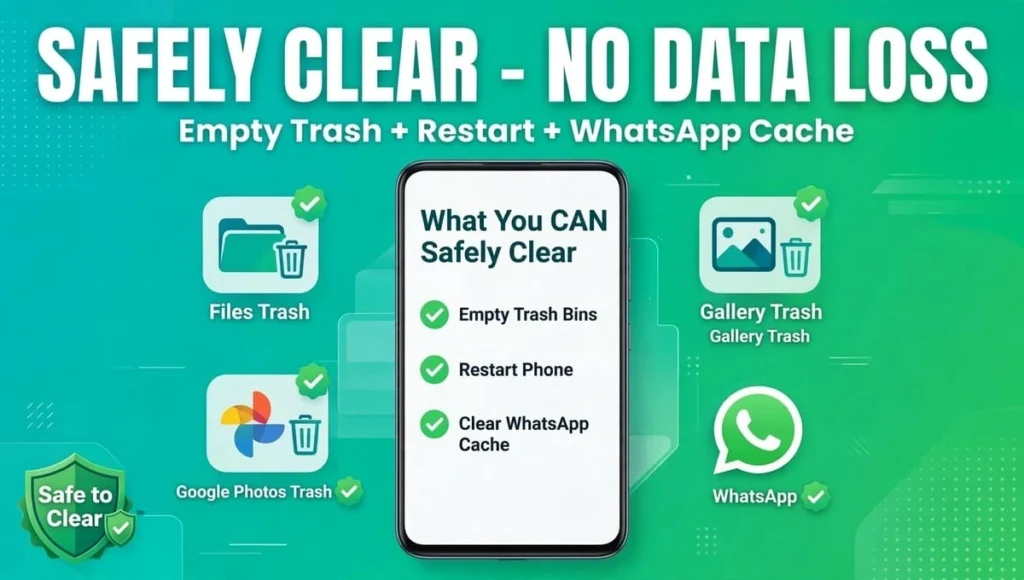
What You CAN Safely Clear
1. Empty All Trash Bins: When you delete a photo, it goes to Trash for 30 days and still takes space. You must empty trash in 3 places:
- Files by Google > Trash > Empty
- Gallery > Trash > Empty
- Google Photos > Library > Trash > Empty
2. Restart Your Phone: Restart once a week. It clears temporary system files.
3. Clear WhatsApp Cache: WhatsApp is the biggest hidden storage eater. Open WhatsApp > Settings > Storage and data > Manage storage > Review and delete items larger than 5MB. This deletes forwarded videos, not your chats.
You cannot delete the Android System itself, and you should never try. If System is taking more than 25GB, a factory reset after full backup is the only clean fix.
Safe Cleanup Checklist – What NOT To Delete
To free up storage on Android safely, follow this rule:
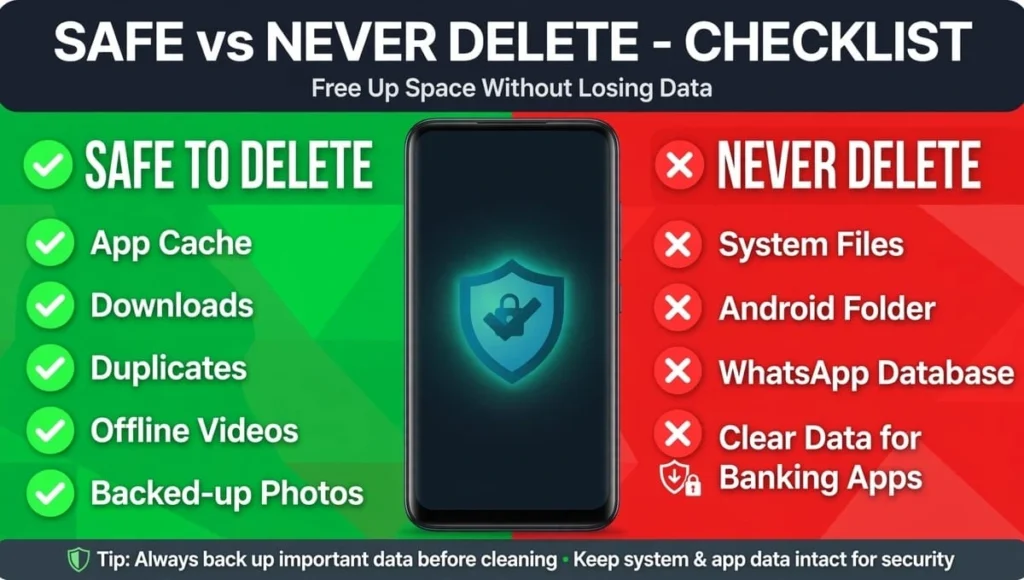
SAFE TO DELETE:
- App cache
- Downloads
- Duplicates
- Offline videos/music
- Screenshots you don’t need
- Backed-up photos
NEVER DELETE:
- System files
- Android folder / Data folder
- WhatsApp Database folder (it has your chat backup)
- “Clear Data” for banking apps unless you remember your password
FAQs – Free Up Storage on Android
How to clear internal storage on android without deleting photos?
Clear app cache, delete Downloads, empty Trash, and delete offline downloads in YouTube, Spotify, and Netflix. These 4 steps free up 5-10GB without touching your photos.
Why is my storage still full after I deleted everything?
Because deleted files go to Trash for 30 days. You must empty Trash in Files, Gallery, and Google Photos. Also check WhatsApp media, which stays even after you delete chats.
What is the difference between Clear Cache and Clear Data?
Clear Cache deletes temporary files only and is safe. Clear Data resets the app completely, logs you out, and deletes local chats. Never tap Clear Data unless you have a backup.
How to free up space on android phone Samsung?
Go to Settings > Battery and device care > Storage. Use the Storage cleaner, then open My Files > Downloads and Gallery > Trash to empty them. This is Samsung’s built-in Android Storage Manager.
What is “Other” storage on Android and how do I clear it?
“Other” includes system temporary files, app data, and cached files. Restart your phone, clear cache of top apps, and empty all Trash bins to reduce it safely.
Is it safe to use a cleaner app to free up storage?
No. Most third-party cleaner apps show fake ads and delete useful files. Use Files by Google or your phone’s built-in Android Storage Manager instead. They are free and safe.
Will factory reset fix storage problem?
Yes, but it should be your last option. Backup everything to Google Photos and Google Drive first, then reset. It will clear system storage and give you a fresh phone.
Conclusion – Your Phone Is Not Full, It’s Just Cluttered
You don’t need a new phone. You just need a 15-minute cleanup.
To free up storage on Android, start with cache, then Downloads, then duplicates, and finally backed-up photos. That is how to clear internal storage on android the safe way. Use the Android Storage Manager in Files by Google, and don’t forget to Clear system storage junk by emptying Trash and restarting.
Do this once a month, and you will never see the “Storage Full” warning again.
Your next step: Open Settings > Storage right now and tell us in the comments – what is taking the most space on your phone? Apps, Photos, or System?