Run AI Models Locally on PC: Ultimate 2026 Guide
Want to run AI models locally on PC without paying for ChatGPT every month and without sending your private chats to the internet? You can do it. Even a normal…
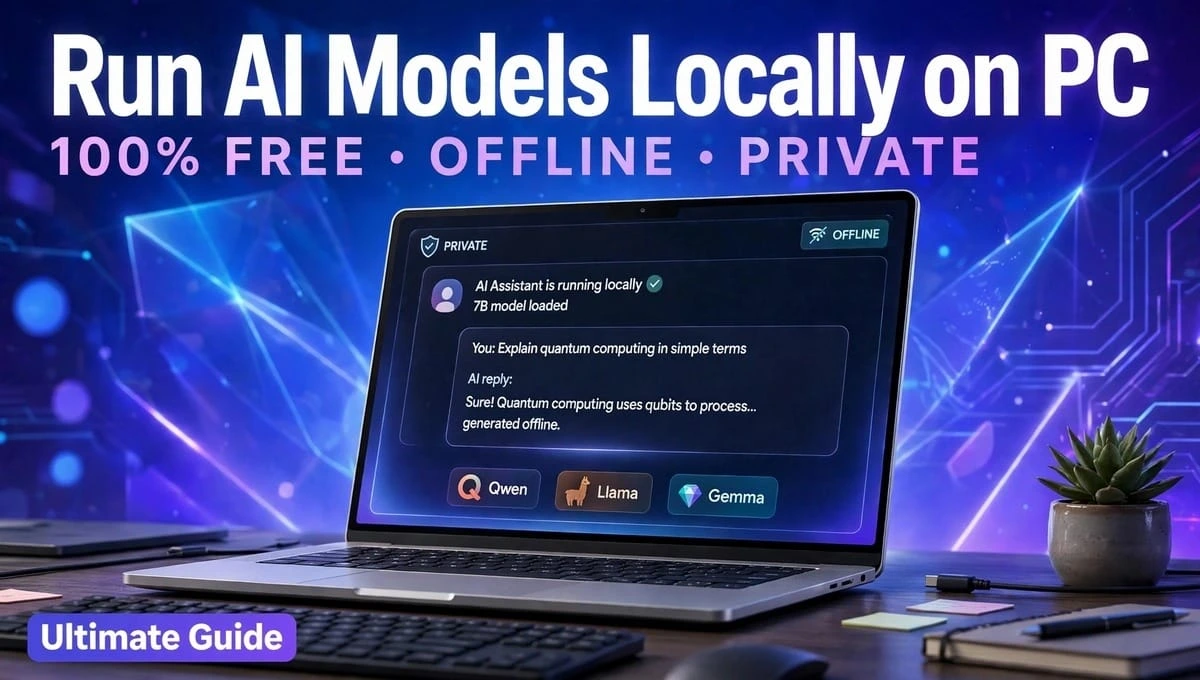
Want to run AI models locally on PC without paying for ChatGPT every month and without sending your private chats to the internet? You can do it.
Even a normal laptop with 8GB of RAM can run a smart AI assistant completely offline. You don’t need to be a coder. You don’t need an expensive gaming PC. You just need the right tool and the right model for your hardware.
This guide will show you how to check your PC, install your first model in 10 minutes, and fix the common problems that make most beginners quit.
Why Run AI Locally Instead of Using ChatGPT?
Cloud AI is powerful, but it has 3 big problems:
1. Privacy: Everything you type goes to a server.
2. Cost: $20/month forever.
3. Internet: No internet = no AI.
When you run locally, your chats never leave your computer. There is no monthly bill. And you can work on a plane, in a village, or during load-shedding.
Local AI is perfect for students, developers, writers, and anyone who works with private documents.
How Much VRAM Do I Need To Run Local AI?
This is the #1 question everyone asks. VRAM is the memory on your graphics card. Think of it like the size of a table. A bigger table can hold a bigger model.
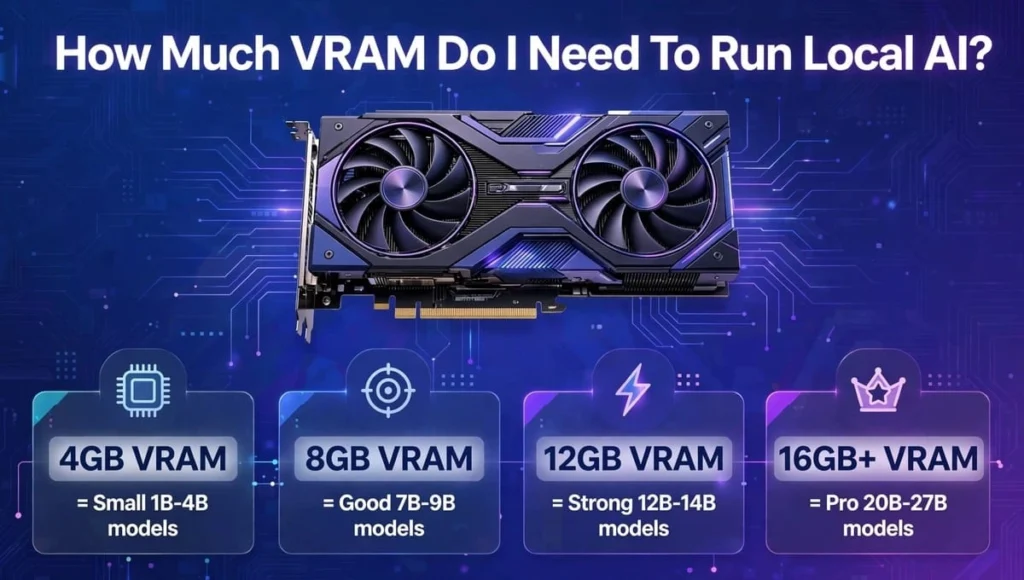
Here is a simple rule that works in 2026:
| Your PC | What You Can Run | Best Model To Start With |
| 8GB RAM / 4GB VRAM | Small 1B – 4B models | Qwen 3.5 4B, Gemma 4 4B |
| 16GB RAM / 8GB VRAM | Good 7B – 9B models | Llama 3.3 8B, Qwen 3 8B |
| 16GB RAM / 12GB VRAM | Strong 12B – 14B models | Gemma 4 12B, Phi-4 14B |
| 32GB RAM / 16GB+ VRAM | Pro 20B – 27B models | GPT-OSS 20B, Qwen 3 27B |
| Apple Mac M1/M2/M4 16GB+ | Uses Unified Memory | Same as above, often faster |
Pro Tip: If your model does not fit in VRAM, it will spill into normal RAM and become very slow. Always pick a model smaller than your VRAM.
How To Run AI Locally On Windows Without Coding
You have two best options. Pick one based on your comfort level.
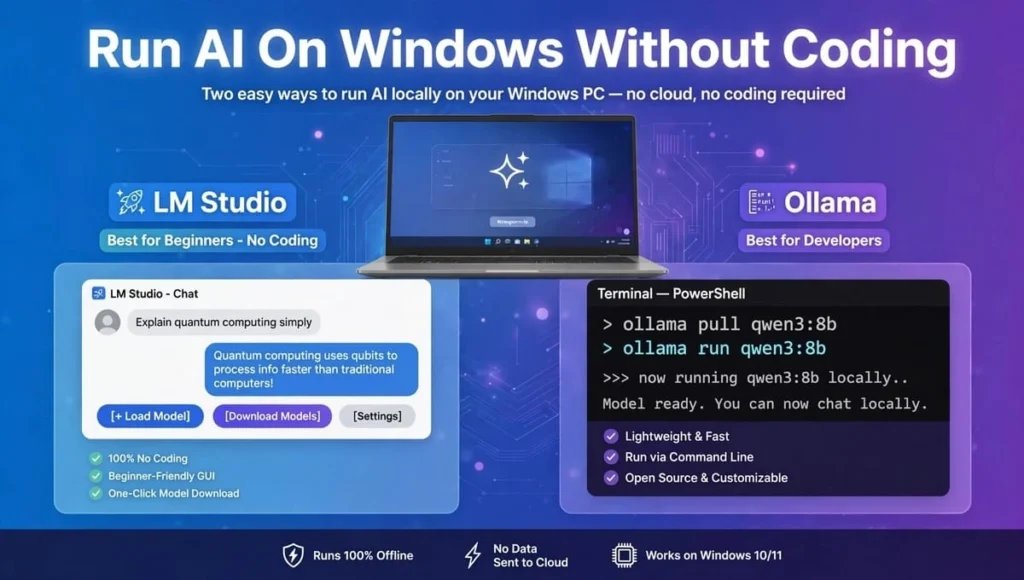
Option 1: LM Studio (Best for Beginners)
If you have never opened a terminal, use LM Studio. It is an offline AI assistant for Windows PC with buttons, not commands.
Steps:
- Go to lmstudio.ai and download for Windows.
- Open it and click on “Search” on the left.
- Search for Qwen 3.5 4B and download the Q4 version.
- Click “Load Model” and start chatting.
That’s it. No coding at all.
Option 2: Ollama (Best for Developers)
Ollama is lighter and faster. It uses one command.
Steps:
- Download Ollama from ollama.com.
- Install it like any normal app.
- Open Command Prompt and type: ollama run qwen3:8b
- Wait for download, then chat.
Ollama is perfect if you later want to connect local LLM to VS Code or other apps.
How To Connect Local LLM To VS Code
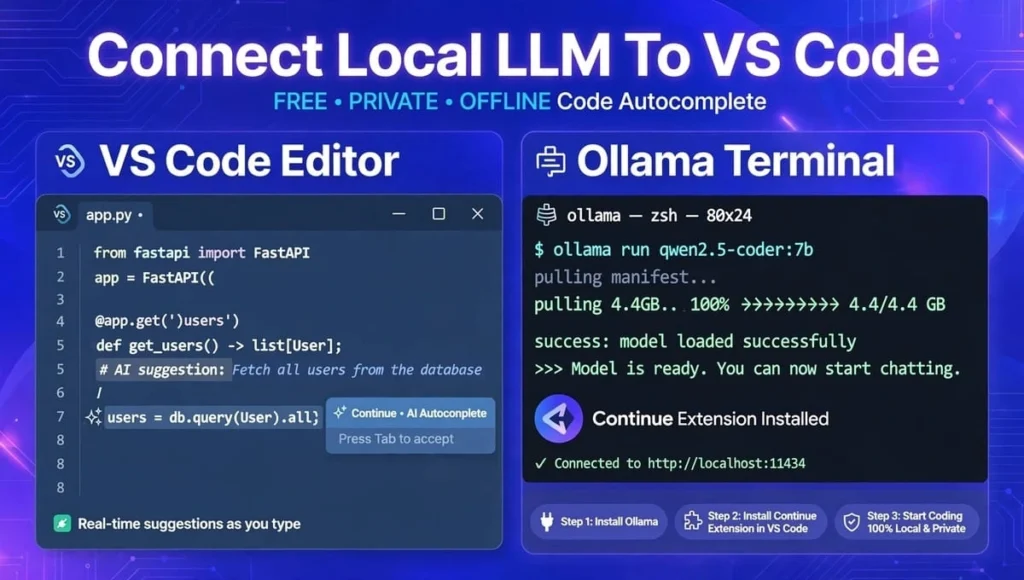
This is why developers love local AI. You can get free, private code autocomplete.
- Install Ollama and run a coding model: ollama run qwen2.5-coder:7b
- In VS Code, install the extension “Continue” or “CodeGPT”.
- In the extension settings, choose Provider: Ollama and Model: qwen2.5-coder:7b
- Now press Ctrl + Shift + L and ask it to explain or fix your code.
Your code never leaves your PC. This is a huge advantage over cloud copilots.
Best Local AI Models in 2026 (Tested Picks)
Don’t download 20 models. Start with one of these:
1. Qwen 3.5 4B – Best for 8GB Laptops
Fast, smart, great for daily chat and homework. Download size: ∼2.5GB.
2. Llama 3.3 8B – Best All-Rounder
Made by Meta. Excellent balance of speed and intelligence for most people.
3. Gemma 4 12B – Best for Writing
Google’s model. Very good at long writing, summaries, and creative tasks.
4. GPT-OSS 20B – Best for Reasoning
OpenAI’s open model. Needs 16GB VRAM, but can reason like a pro model.
Local Video AI: Motion Quality, Clip Duration, Credits & Watermark Comparison
Most guides only talk about text. People also want to run video AI locally. Here is how local video models compare to cloud tools like Runway, Pika, and Sora.
| Tool / Model | Motion Quality | Clip Duration | Credits / Cost | Watermark |
| Wan 2.2 (Local) | Very smooth, realistic movement | 5 – 10 seconds per clip | 100% Free, 0 Credits | No Watermark |
| FLUX + Animate (Local) | Good for simple motion | 2 – 5 seconds | 100% Free, 0 Credits | No Watermark |
| Runway Gen-4 (Cloud) | Excellent, cinematic | Up to 16 seconds | Paid credits, ~$15/mo | Watermark on free plan |
| Pika 2.2 (Cloud) | Good, stylized | Up to 10 seconds | Limited free credits daily | Watermark on free plan |
What does this mean for you? Local models give you unlimited clips with no watermark and no credits, but they are shorter and need a strong GPU (16GB+ VRAM). Cloud tools look slightly better, but you pay for every second and get a watermark unless you pay.
If you are a beginner, start with text models first. Move to video only after you have 16GB VRAM.
Common Problems And How To Fix Them
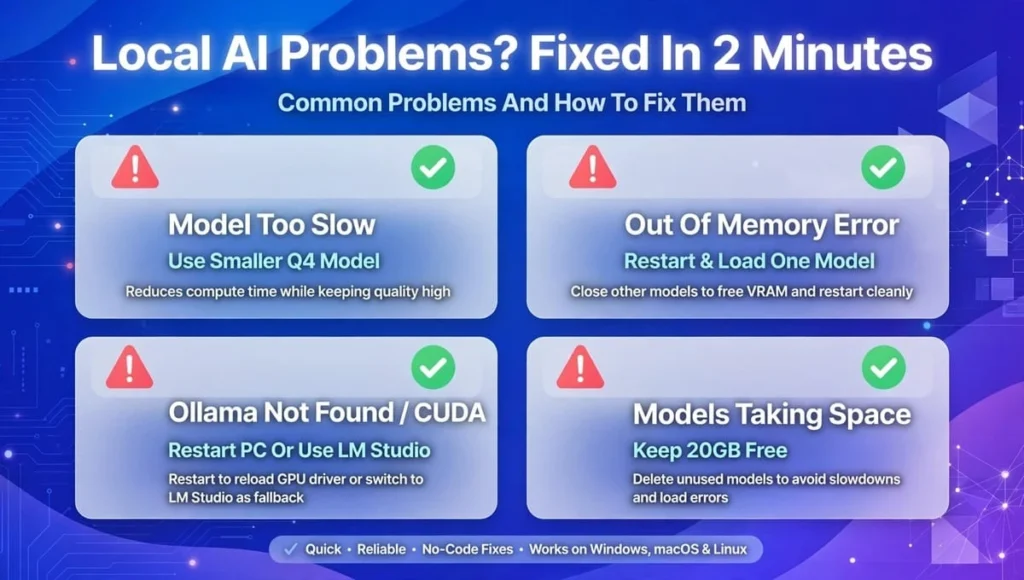
Problem 1: Model is too slow (2-3 tokens/sec)
You picked a model too big for your PC. Download a smaller Q4 version, or close Chrome and other apps.
Problem 2: “Out of Memory” Error
Your VRAM is full. Restart Ollama / LM Studio and load only one model at a time.
Problem 3: Ollama not found / CUDA error
Restart your PC after installing. If you have an AMD or Intel GPU, use LM Studio instead – it handles AMD/Intel better.
Problem 4: Where are models stored?
Ollama stores them in C:\Users\YourName.ollama\models. Each 8B model is about 5GB, so keep at least 20GB free.
Conclusion – Run AI Models Locally on PC
You don’t need a supercomputer to run AI models locally on PC. You just need to know your VRAM, pick the right model, and use a simple tool like LM Studio or Ollama.
Start small today. Install one 4B or 8B model, chat offline, and see how powerful your own PC really is. Once you are comfortable, you can try coding models, image models, and even video models – all free, private, and with no watermark.
Your PC is already an AI PC. You just have to unlock it.
FAQs – Run AI Models Locally on PC
Can I run AI models locally on PC with 4GB VRAM?
Yes. Use a small 1B to 3B model like Qwen 3.5 1.5B or Gemma 4 2B in Q4 quantization. It will work for simple chat and summaries, but not for heavy coding.
How much VRAM do I need to run local AI for coding?
For coding, you need at least 8GB VRAM. Use Qwen2.5-Coder 7B or Llama 3.3 8B. They fit in 8GB and give fast, accurate code help in VS Code.
Can I run AI locally on Windows without coding?
Yes, absolutely. Download LM Studio, search for a model, click Load, and start chatting. No terminal, no Python, no coding needed at all.
Is local AI completely offline?
Yes, after the first download. Once the model is on your PC, you can disconnect Wi-Fi and it will still work. This makes it perfect as an offline AI assistant for Windows PC.
Which is better: Ollama or LM Studio?
LM Studio is better for beginners because it has a visual interface. Ollama is better for developers because it is faster and easy to connect to VS Code, Open WebUI, and other tools.
Can I run local AI on Intel integrated graphics or AMD?
Yes, but slower. LM Studio supports Intel and AMD better than Ollama. Use a small 3B-4B model and expect 5-10 tokens per second, which is usable for chat.
Does running AI locally damage my laptop?
No, if you have good ventilation. Your GPU will get hot like when gaming. Keep your laptop on a flat surface, don’t block fans, and avoid running a 70B model on a thin laptop.
How much disk space do I need?
A 7B-8B model needs about 5GB. A 20B model needs about 13GB. Keep at least 20GB free on your C: drive for 2-3 models and safe performance.