High RAM Usage While Gaming? 100% Fix for 16GB & 32GB PCs
Seeing high RAM usage while gaming is scary. You open Task Manager and your 16GB RAM is at 90%, 95%, even 100%. Your game starts lagging, FPS drops, and Windows…
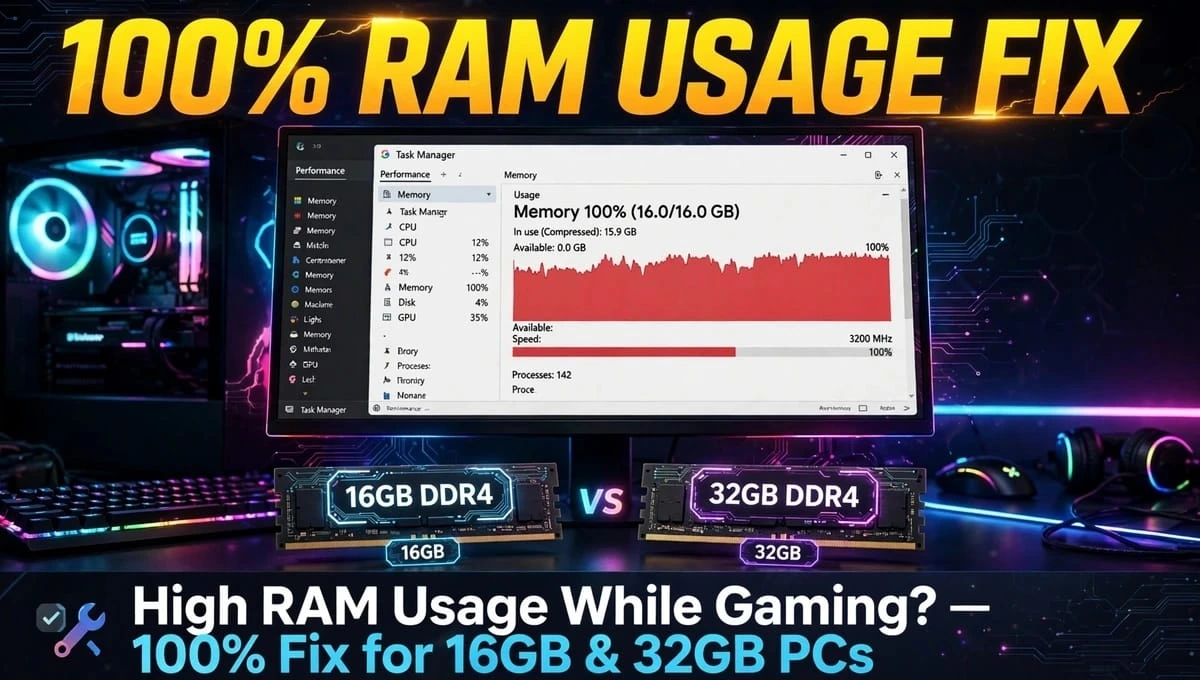
Seeing high RAM usage while gaming is scary. You open Task Manager and your 16GB RAM is at 90%, 95%, even 100%. Your game starts lagging, FPS drops, and Windows freezes.
Is it normal? And how do you fix it?
The short answer: 70-85% RAM usage while gaming is normal for 16GB RAM in 2026 games. If you hit 90-100% constantly, you have a fixable problem – not a hardware failure. It is usually a background app, a memory leak, or Windows settings eating your memory.
Let’s break down why it happens and how to fix it permanently.
What is Considered Normal RAM Usage While Gaming?
Many guides skip this, but it’s the most important part.
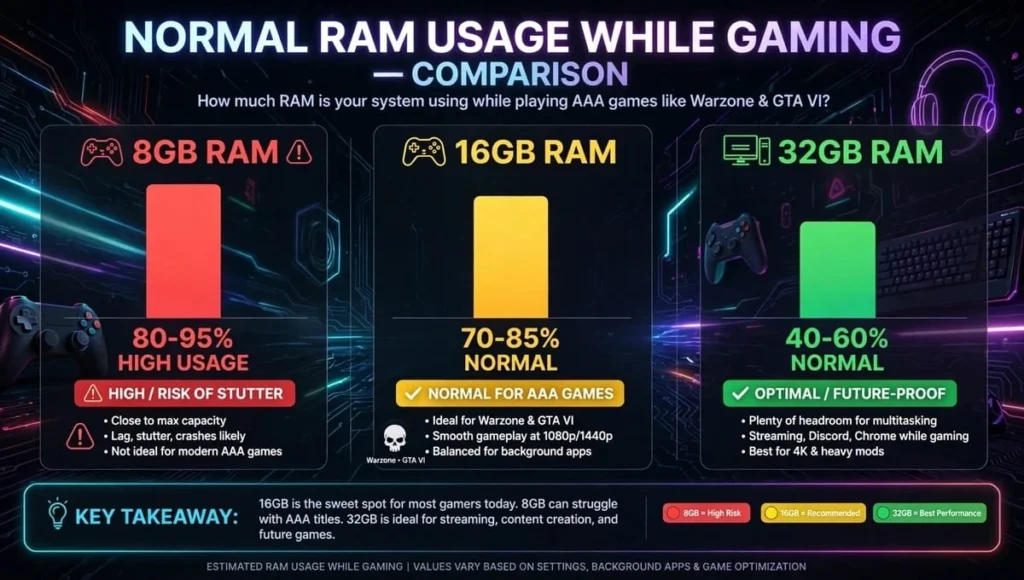
- With 8GB RAM: 80-95% usage is expected. 8GB is no longer enough for modern games. You will stutter even with everything closed.
- With 16GB RAM: 70-85% is normal while playing AAA games like Warzone, Hogwarts Legacy, or GTA 6. If you see high RAM consumption in games above 90% with Discord and Chrome closed, something is wrong.
- With 32GB RAM: 40-60% is normal. If you hit 80%+ on 32GB, you definitely have a memory leak.
Important: High RAM usage itself doesn’t give you more FPS. But when RAM fills up, Windows starts using your slow SSD as temporary RAM (called paging). That’s when you get stutter, even if your FPS counter looks okay.
5 Real Reasons Why You Have High RAM Usage While Gaming
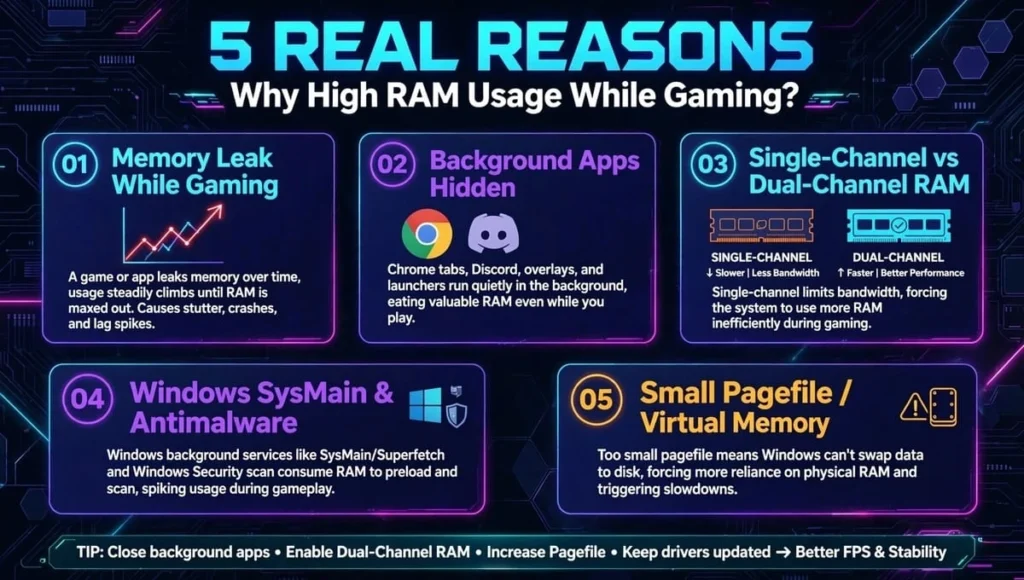
The top 3 ranking articles only say “close background apps.” That’s not enough. Here are the real causes in 2026:
1. Memory Leak While Gaming (Most Common in 2026)
This is when games using more RAM than usual keeps growing over time. You start a game at 60% RAM, after 30 minutes it’s at 95%, and never goes down.
Why? Bad game updates, old GPU drivers, or Windows 11 24H2 bug. Many players on Reddit reported that after closing the game, RAM stays at 90%. That’s a classic memory leak.
Fix: Update your game, update GPU drivers with clean install, and restart your PC. Don’t use “sleep” mode for gaming PCs.
2. Background Apps You Don’t See in Taskbar
You close Chrome, but Chrome still runs in the background. Same for Discord, Spotify, Razer Synapse, and Microsoft Edge.
Discord with hardware acceleration ON can use 500MB-1GB alone. Chrome with 5 tabs can use 2GB. Add a game launcher like Steam + Epic + Riot Client = 1.5GB extra.
This hidden usage causes high RAM consumption in games before you even start.
3. Single-Channel RAM vs Dual-Channel RAM
This is the biggest mistake. If you have one 16GB stick (single-channel), your PC uses RAM 40% less efficiently than two 8GB sticks (dual-channel). Many Gaming Laptops come with single-channel to save cost.
Check Task Manager > Performance > Memory > Slots used. If it says 1 of 2, you have single-channel. That’s why you see 95% usage.
4. Windows SysMain and Antimalware Service
Two Windows services silently eat RAM while gaming:
- SysMain (formerly Superfetch): Tries to preload games but often bugs and uses 1-2GB.
- Antimalware Service Executable: Windows Defender scanning your game files live.
5. Small Pagefile / Virtual Memory
When your RAM fills, Windows needs virtual memory (pagefile) on your SSD. If your pagefile is set too small or disabled (some “optimization” guides tell you to disable it), your system crashes or stutters instantly at 90% RAM.
How to Fix High RAM Usage When Gaming (Step-by-Step)
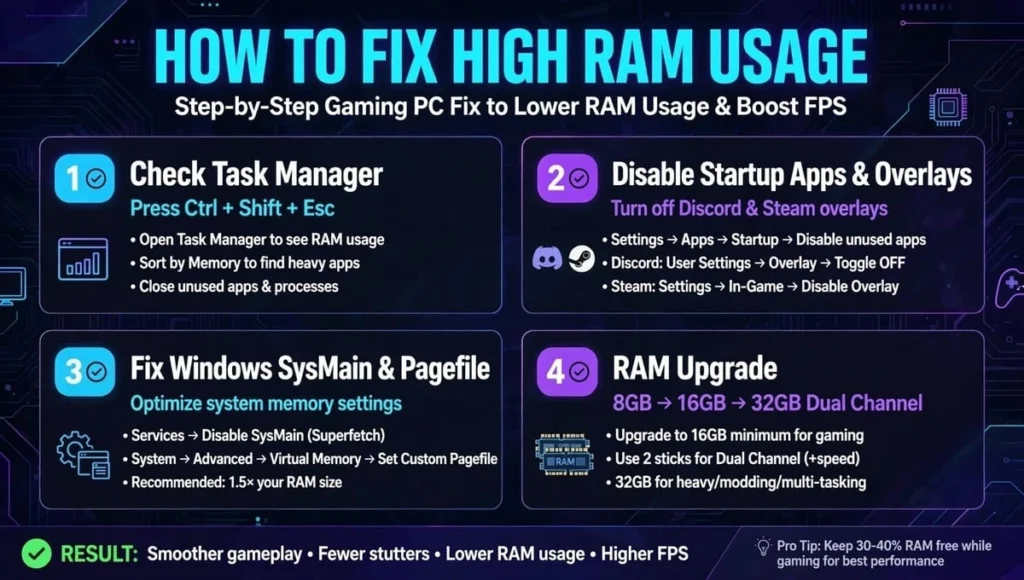
Here is the exact fix order that actually works. Do it in order and test your game after each step.
Step 1 – Check What is Really Using RAM
- Press Ctrl + Shift + Esc to open Task Manager.
- Click Processes and sort by Memory.
- While gaming, look for apps using more than 500MB besides your game. Common culprits: Chrome, Discord, msedge, Search Indexer, Razer Synapse.
If you see your game slowly climbing from 6GB to 12GB, that’s a memory leak while gaming.
Step 2 – Disable Startup Apps and Overlays
This frees 1-3GB instantly.
- In Task Manager, go to Startup Apps tab. Disable everything except your audio and GPU driver (Realtek, NVIDIA). Disable Discord, Spotify, OneDrive, Steam from startup.
- In Discord: Settings > Advanced > Disable Hardware Acceleration.
- In Steam / Epic: Settings > Disable in-game overlay.
- In Windows: Settings > Gaming > Game Mode > Turn ON. It automatically reduces background activity.
Step 3 – Fix Windows Settings That Cause High Usage
A) Disable SysMain:
Press Windows + R > type services.msc > Find SysMain > Right Click > Stop > Properties > Startup type > Disabled.
B) Fix Pagefile:
Go to This PC > Right Click > Properties > Advanced System Settings > Performance Settings > Advanced > Virtual Memory > Check “Automatically manage paging file size”. Never disable it.
C) Restart, Don’t Sleep:
Restart your PC at least twice a week. Restart clears the memory leak.
Step 4 – Check if You Need a RAM Upgrade
If after all steps you still see 90%+ usage:
- You have 8GB: Upgrade is mandatory. Buy another 8GB stick of same speed. Make it dual-channel.
- You have 16GB single-channel (1 stick): Buy one more 16GB stick or replace with 2x8GB kit. This alone can drop usage from 95% to 75%.
- You have 16GB dual-channel and still 100%: Your game needs 32GB. Games like Star Citizen and new AAA titles now recommend 32GB.
This is the most honest answer to how to fix high RAM usage when gaming – sometimes software fixes aren’t enough.
Final Verdict: When to Worry and When It’s Normal
If your high RAM usage while gaming stays under 85% on 16GB and your game is smooth, you are fine. Windows is designed to use available RAM.
Worry when:
- RAM hits 90-100% and you get stutter / freezes
- RAM doesn’t drop after you close the game
- You see games using more RAM than usual compared to last month
Fixing memory leak while gaming and background apps fixes 80% of cases. You don’t need a RAM cleaner – those apps actually make it worse by forcing Windows to reload data.
Start with Task Manager, disable startup, and check if you are single-channel. That alone solved it for most users on Reddit and LinusTechTips.
FAQs: High RAM Usage While Gaming
Is 90% RAM usage while gaming normal for 16GB RAM?
No. 70-85% is normal for 16GB. 90%+ means background apps or a memory leak. Close Chrome/Discord and check if you have single-channel RAM. If it stays at 90%, you need fixes above.
Why does my RAM stay high even after closing the game?
This is a classic memory leak while gaming. The game didn’t release RAM. Restart your PC and update GPU drivers with clean install. Also disable SysMain service in Windows.
Does high RAM usage cause low FPS or stutter?
It causes stutter, not low FPS. When RAM is full, Windows uses your SSD for temporary memory. SSD is 50x slower, so frames arrive late. You see hitching even at 60 FPS.
How to fix high RAM usage when gaming without buying more RAM?
Disable startup apps in Task Manager, turn off Discord hardware acceleration, enable Windows Game Mode, and set pagefile to automatic. This frees 2-4GB instantly without any purchase.
Should I keep Chrome open while gaming with 16GB?
No. Chrome with 5 tabs uses 2-3GB. With 16GB, that pushes games using more RAM than usual to 100%. Close Chrome completely or use one tab only. Use Task Manager to end all Chrome processes.
Will 32GB RAM fix high RAM consumption in games?
Yes, for new games. 32GB gives you 50% headroom. But first fix software issues. If you upgrade from single 16GB to dual 32GB (2x16GB), your high RAM usage will drop from 95% to 55% and stutter will be gone.
Do RAM cleaner apps like Razer Cortex work?
No. They free RAM temporarily by deleting cached data, but Windows has to reload it, causing more stutter. Better to manually close apps. Reddit and tech experts agree RAM cleaners are not recommended.