AI Image to Video Generator: 7 Best Free Tools 2026
You have a great photo. Now you want it to move. An AI image to video generator is the easiest way to do that. You upload a still image, write…
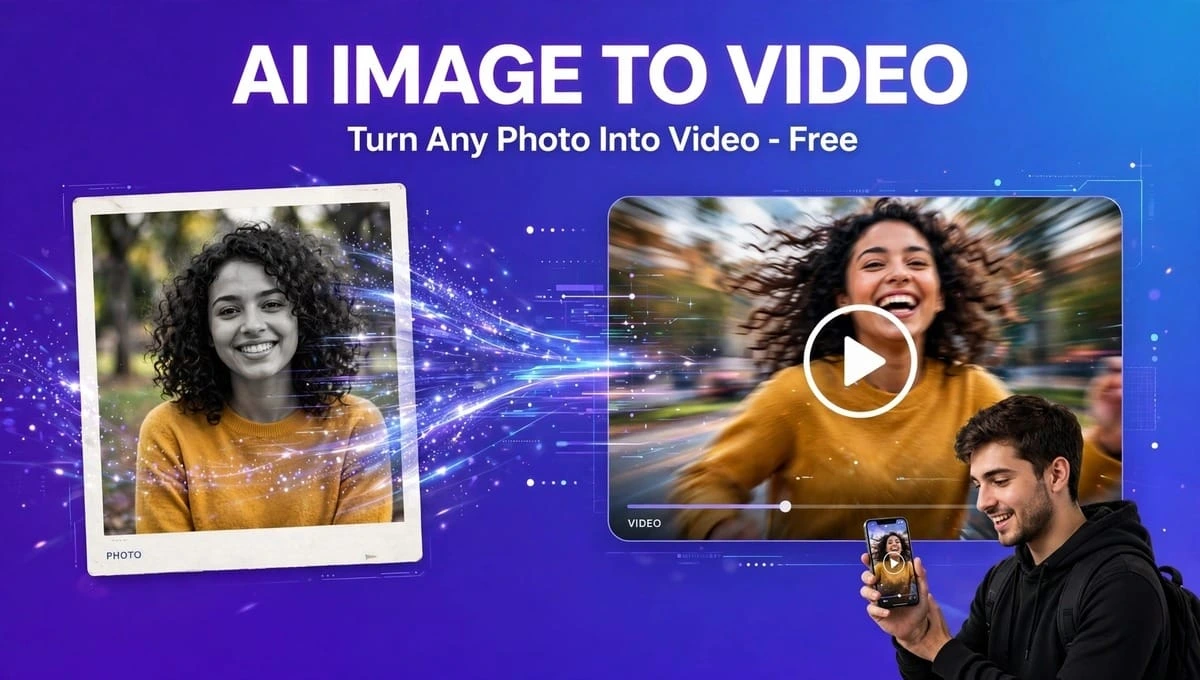
You have a great photo. Now you want it to move.
An AI image to video generator is the easiest way to do that. You upload a still image, write one line like “make her smile and wave”, and in 30 seconds you get a moving video clip. No camera. No editing skills. No expensive software.
But here is the problem: Almost every tool says “free”. In reality, most give you a 4-second clip with a big watermark, then ask for $20 to download it clean.
I tested the tools that are actually ranking in 2026 – Viggle, HeyGen, Manus, Kling, Runway, PixVerse, and Hailuo – for one thing: which one gives you a usable video for free?
This guide compares motion quality, clip duration, credits, and watermark policies honestly. So you don’t waste your time or credits.
How To Convert Still Images Into AI Video Clips?
If you have never done this before, it takes only 3 steps. This is how to convert still images into AI video clips in any tool:
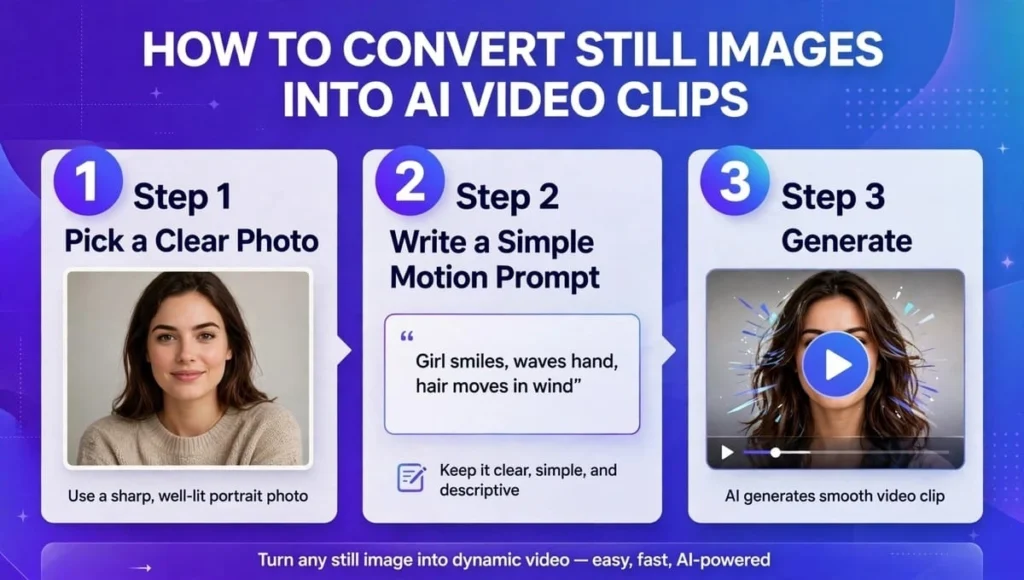
Step 1: Pick a Clear Photo
Use a sharp, front-facing photo. Blurry, dark, or side-face photos give weird results. For a person, eyes and face should be clear. For a product, the background should be clean.
Step 2: Write a Simple Motion Prompt
Don’t write a story. Write one action.
Good: “Girl smiles, waves hand, hair moves in wind”
Bad: “Make a cinematic Hollywood movie with drama and emotions”
AI understands simple actions better.
Step 3: Generate, Check, and Re-generate
First result is rarely perfect. Check hands, face, and background. If the face changes, try again with a shorter prompt. Pro creators generate 3-4 versions and pick the best one.
That’s it. Now let’s see which tool does this best.
AI Image To Video Generator Comparison: Motion, Duration, Credits & Watermark
This is the part other articles hide. I compared the real free plans, not the marketing claims.
Quick Comparison Table
| Tool | Best For | Motion Quality | Max Clip (Free) | Free Credits | Watermark on Free? |
| Viggle | Memes, dance, character swap | Very good for body motion, weak for faces | 5-10 sec | 5 videos / day | Yes |
| HeyGen | Business, talking avatar | Very good for face + lip-sync | 1 min, 3 videos / month | 3 videos / month | Yes |
| Manus | Full video with script + voice | Good for cinematic shots | 5-10 sec per shot | Limited credits | Depends on plan |
| Kling | Cinematic, realistic motion | Excellent, most natural | 5-10 sec | Daily free credits | Yes |
| Runway | Professional, creative | Excellent, film-like | 5-10 sec | Limited credits | Yes |
| PixVerse | Fun, anime, social | Good for fun effects | 5-8 sec | Daily free | Yes |
| Hailuo / MiniMax | Realistic people | Very good for realism | 6 sec | Daily free | Yes |
Lesson: No tool is best for everything. Best for memes is different from best for business.
Motion Quality Compared – Which Tool Moves Most Naturally?
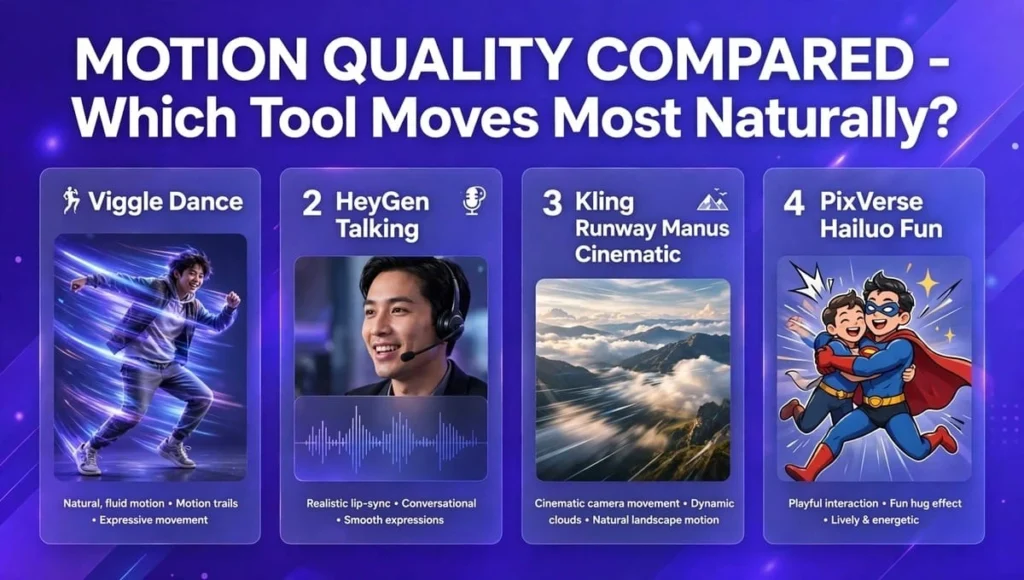
1. Best For Body Motion: Viggle
If you want to animate image with AI to make a person dance, Viggle is the king. You give it a photo + a dance video, and it puts your character into that dance.
Motion feels natural because it copies real human movement. But faces can look stiff, and hands sometimes get distorted on hard moves.
Use it for: Memes, birthday videos, TikTok dance, fandom edits.
Don’t use it for: Business presentations, product ads, long videos.
2. Best For Face + Talking: HeyGen
HeyGen is an AI photo animator for talking videos. Upload a portrait, add a script or audio, and the face talks with lip-sync.
This is the best tool if you want a photo to sing, speak in another language, or present like a teacher. It supports 175+ languages.
But it is boring for memes. It cannot make a person do a backflip. It is made for professional, clean videos.
Use it for: Sales videos, training, YouTube faceless channel, photo singing.
3. Best For Cinematic Shots: Kling + Runway + Manus
If you want a landscape photo to come alive – clouds moving, water flowing, camera slowly zooming – Kling and Runway are best.
Manus is different. It is not just a tool, it is an agent. You say “Make a 30-second ad for my coffee shop from this photo”, and it writes the script, makes the shots, adds voiceover and music, and edits it.
It is powerful, but slow for a simple 5-second meme. Use Manus when you want a full finished video, not just a clip.
4. Best For Fun & Social: PixVerse + Hailuo
PixVerse has fun templates – hug, kiss, muscle, superhero effects. Hailuo makes realistic people look very natural. Both are great for Instagram Reels and TikTok.
They are not good for business because they have less control over the final output.
Clip Duration, Credits & Watermark – The Real Cost
This is where most people get fooled.
How Long Can You Make?
Free plans give you 5 to 10 seconds in most tools. HeyGen gives you up to 1 minute, but only 3 videos per month. Manus can make a longer video by joining many small shots together, but it takes more time and credits.
If you need a 30-second video for YouTube, free plans are not enough. You will need to make 3-4 clips and join them in CapCut.
How Do Credits Work?
Think of credits like coins.
- Viggle: You get 5 free videos every day. Simple.
- HeyGen: You get 3 free videos per month. Very limited.
- Kling / Runway / PixVerse: You get daily credits. One 5-second video = 10-20 credits.
- Manus: It uses tokens. One full video can eat a lot of tokens because it does research + script + video together.
Pro Tip: Never buy a yearly plan before testing. Make 3-4 free videos first. If the face keeps changing, that tool is not good for your photo.
Watermark Policy – Can You Use It For Free?
Image to video AI free does not mean watermark-free.
- Viggle Free: Small watermark
- HeyGen Free: Watermark + HeyGen logo
- Kling / Runway / PixVerse Free: Watermark
- Manus: Depends on plan
If you want to post on TikTok for fun, watermark is okay. If you want to use it for a client or business, you must pay to remove it. Otherwise, it looks unprofessional.
Cheapest way to remove watermark: Viggle Pro starts around $7.99/month. HeyGen starts around $24/month. For casual users, Viggle is cheaper. For business, HeyGen is worth it.
Which AI Image To Video Generator Should YOU Pick?
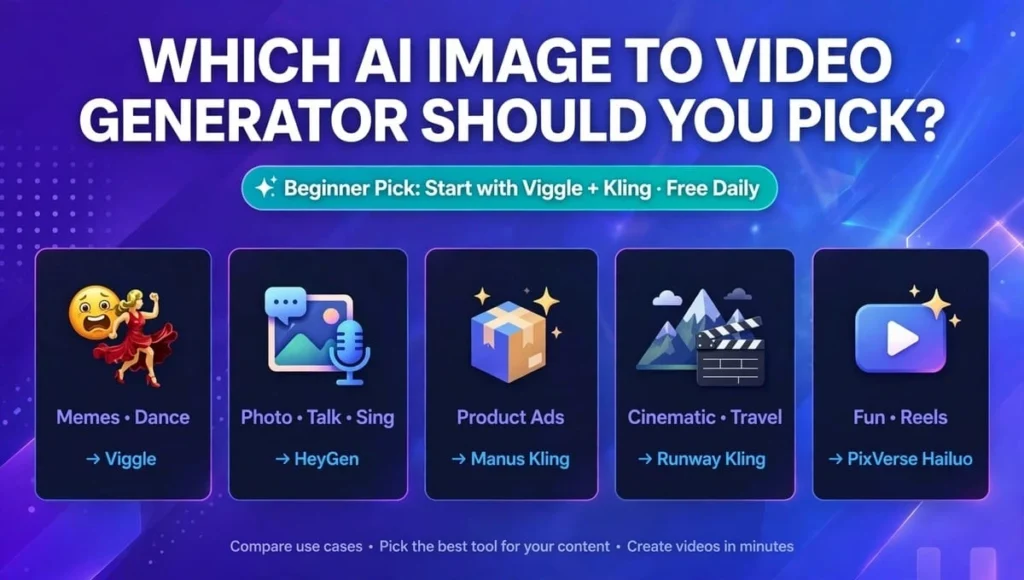
Don’t pick the most famous tool. Pick the one that matches your job.
You want memes / dance videos? Pick Viggle.
You want a photo to talk / sing? Pick HeyGen.
You want product ads from a photo? Pick Manus or Kling.
You want cinematic travel videos? Pick Runway or Kling.
You want fun Reels quickly? Pick PixVerse or Hailuo.
My Honest Pick For Most Beginners: Start with Viggle for fun + Kling for realistic motion. Both are free daily. Once you learn prompting, move to HeyGen if you need talking videos for work.
5 Mistakes That Ruin Your Video
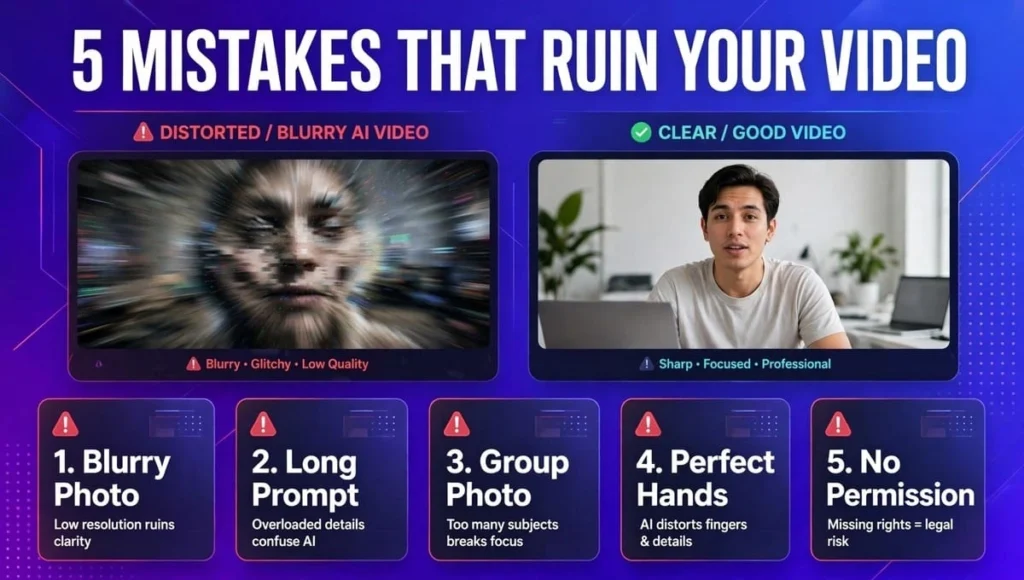
- Using a blurry photo: AI cannot fix a bad photo. It makes it worse.
- Writing a long prompt: Keep it to 1-2 actions.
- Animating a group photo: AI gets confused with 2+ faces. Crop to one person.
- Expecting perfect hands: AI still struggles with hands. Avoid prompts like “show 10 fingers clearly”.
- Using someone else’s photo without permission: Don’t animate celebrities or other people without consent. It can be illegal and your account can be banned.
FAQs – AI Image To Video Generator
Is there an AI image to video generator free with no watermark?
No truly free tool gives watermark-free HD video forever. Free plans always add a watermark. Viggle and Kling give the best free value, but you must pay $8-$24/month to remove the watermark for commercial use.
How to convert still images into AI video clips for free?
Upload a clear photo to Viggle, Kling, or PixVerse, write a simple prompt like “smile and wave”, and click generate. You get 5-10 seconds of video free daily. Download it and edit in CapCut.
Can I animate image with AI to make it talk?
Yes. Use HeyGen as your AI photo animator. Upload a portrait, add text or audio, and HeyGen creates lip-sync. It works for people, cartoons, pets, and anime if the face is clear.
Which AI photo animator is best for memes?
Viggle is best for memes. It copies dance and motion from a reference video onto your photo. It is fast, free daily, and made for TikTok and Reels. It is not good for business videos.
How long can an AI image to video generator make?
Free tools make 5-10 seconds per clip. HeyGen free allows up to 1 minute but only 3 videos per month. For longer videos, generate multiple clips and join them in an editor.
Does an AI image to video generator add audio?
Most do not. Viggle, Kling, and Runway make silent videos. HeyGen and Manus add voice, music, and lip-sync. If you need audio, add music in CapCut or use HeyGen.
Can I use AI-generated videos for YouTube monetization?
Yes, if you have commercial rights. Paid plans allow commercial use. Free plans are usually for personal use only. Always check the tool’s terms before using for clients or monetized channels.
Is it legal to animate someone else’s photo?
No, not without permission. Animating a real person, celebrity, or child without consent can violate privacy laws and platform rules. Use only your own photos or licensed images.
Why does my video look distorted or face changes?
This happens when the photo is blurry, side-face, or the prompt is too complex. Use a front-facing, high-quality photo, keep the prompt short, and generate 2-3 times to pick the best result.
Which is better: Viggle vs HeyGen vs Manus?
Viggle is best for memes and dance. HeyGen is best for talking business videos. Manus is best for full videos with script, voice, and editing. Pick based on your goal, not popularity.
Conclusion – Which AI Image To Video Generator Wins?
There is no single winner. The best AI image to video generator depends on what you want to make.
If you want fun, start with Image to video AI free tools like Viggle and Kling. If you want to animate image with AI for business, HeyGen will save you hours. If you want a full ad from one photo, Manus is the most powerful.
My advice: Pick one tool today. Upload one clear photo. Write one simple prompt. Make your first 5-second clip in the next 10 minutes. Once you see your photo move for the first time, you will understand why this technology is changing content creation forever.
Stop watching demos. Start creating.