External SSD vs Internal SSD Gaming: Speed, FPS & Best Pick
External SSD vs internal SSD gaming is one of the most confusing choices for gamers right now. Your games are getting bigger, your drive is getting fuller, and everyone online…
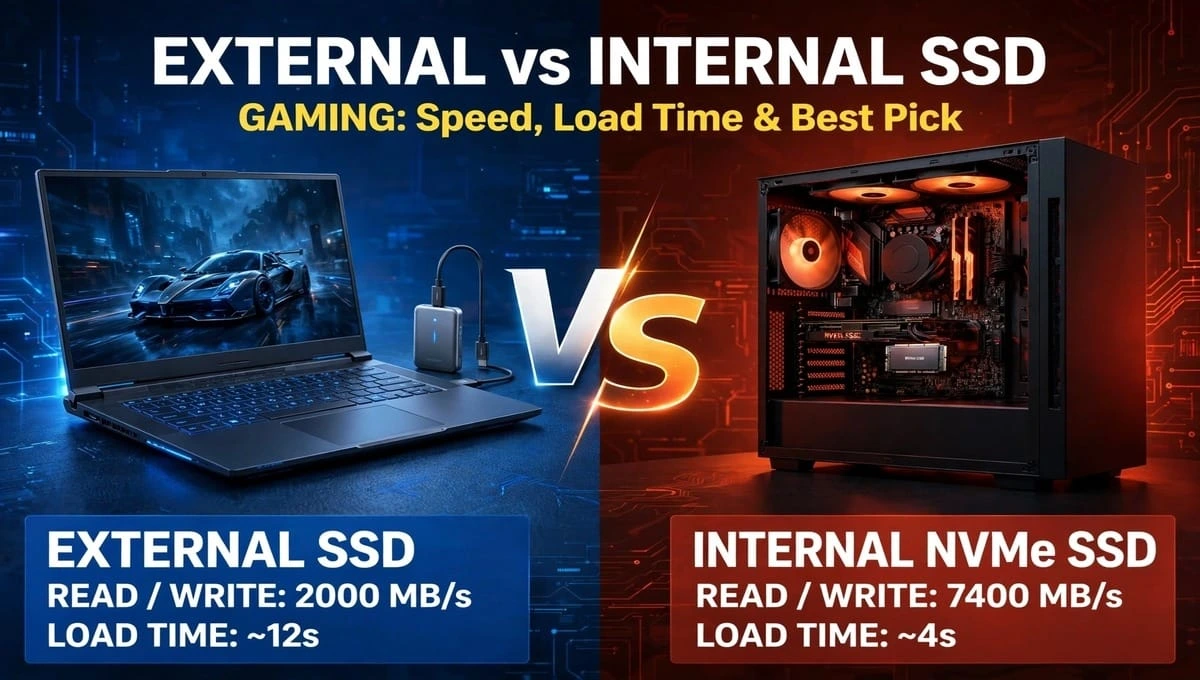
External SSD vs internal SSD gaming is one of the most confusing choices for gamers right now. Your games are getting bigger, your drive is getting fuller, and everyone online is giving you a different answer.
One person says external is just as fast. Another says internal always wins. Both are partly right and both are missing the full picture.
This guide will give you the real answer: how loading times actually work, what USB and Thunderbolt really mean for gaming, which games you can and cannot play from each drive, and which one you should buy for your setup PC, laptop, PS5, Xbox, or Steam Deck.
No jargon. No fake benchmarks. Just a clear decision.
Quick Answer: Which SSD Should You Buy For Gaming?
If you are in a hurry, here is the short version:
Buy an internal SSD if you play on a desktop PC, you want the fastest load times, and you play new AAA games that stream huge open worlds.
Buy an external SSD if you play on a laptop you cannot open, you travel between PCs, or you need extra space for your console.
Buy both if you can small internal for your main games + big external for storage. That is what most smart gamers do.
Now let’s understand why.
External SSD vs Internal SSD Speed: What Actually Matters?
How SSD Speed Works In Simple Words
Think of an SSD like a highway.
Internal SSD gaming performance is like a private highway directly into your computer’s brain. There are no traffic lights, no toll booths. Data goes straight from the drive to the motherboard through PCIe.
External SSD gaming performance is like a highway that has to go through a USB checkpoint first. The drive itself can be super fast, but the USB cable and port decide how fast data can actually pass.
That is the whole secret behind external SSD vs internal SSD speed.
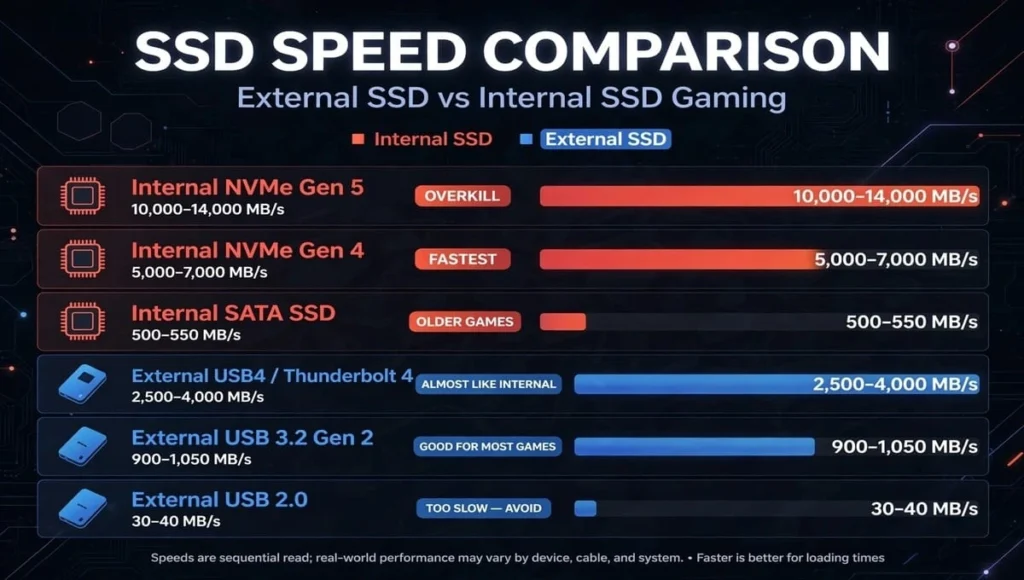
Speed Comparison Table
| Drive Type | Connection | Typical Real Speed | Best For Gaming? |
| Internal NVMe Gen 4 | PCIe 4.0 | 5,000 – 7,000 MB/s | Yes – Fastest |
| Internal NVMe Gen 5 | PCIe 5.0 | 10,000 – 14,000 MB/s | Yes – Overkill for most |
| Internal SATA SSD | SATA III | 500 – 550 MB/s | Okay for older games |
| External USB 3.2 Gen 2 | USB-C 10 Gbps | 900 – 1,050 MB/s | Yes – Good for most games |
| External USB4 / Thunderbolt 4 | USB4 / TB4 40 Gbps | 2,500 – 4,000 MB/s | Yes – Almost like internal |
| External USB 2.0 | Old USB | 30 – 40 MB/s | No – Too slow, avoid |
Important lesson: A 7,000 MB/s internal drive is NOT 7x faster in games than a 1,000 MB/s external drive. Games do not load all data at once. They load in small chunks. So the real-world difference is much smaller than the numbers suggest.
Does An SSD Increase FPS?
No, and this is the biggest myth online.
An SSD does not increase your average FPS. Your FPS comes from your GPU and CPU.
What an SSD does fix is:
- Long loading screens
- Stutter when you enter a new area
- Textures loading late / pop-in
- Games freezing for 1-2 seconds in open worlds
So if your game stutters when you drive fast in GTA, fly in Warzone, or fast-travel in Elden Ring, a faster SSD helps. If your game runs at 40 FPS in a fight, you need a better GPU, not a better SSD.
Loading Times: Real-World Difference
Let’s make this real. Imagine the same game installed on two drives:
- Internal NVMe Gen 4: Game loads in 12 seconds
- External USB 3.2 SSD: Game loads in 18-22 seconds
- External USB4 / Thunderbolt SSD: Game loads in 13-16 seconds
- Old HDD: Game loads in 55-70 seconds
You will feel the jump from HDD to any SSD. You will barely feel the jump from a good external SSD to an internal NVMe, unless you are playing a Direct Storage game or a huge open-world title that streams assets non-stop.
For most gamers, a good external SSD is fast enough.
For competitive and AAA gamers, internal still wins because it is more consistent. No cable to disconnect, no USB port to bottleneck, no heat throttling from a small enclosure.
USB And Thunderbolt Connections Explained
This is where most people get tricked. Not all USB-C ports are the same.
USB 3.2 Gen 1 (5 Gbps) – Basic
Max ∼450 MB/s. Fine for storing games, okay for older games, slow for new AAA titles.
USB 3.2 Gen 2 (10 Gbps) – Most Common
Max ∼1,050 MB/s. This is what Samsung T7, Crucial X9, SanDisk Extreme use. Good enough for 90% of PC games.
USB 3.2 Gen 2×2 (20 Gbps) – Rare On Laptops
Max ∼2,000 MB/s. Fast, but many laptops do not have this port. Check before you buy.
USB4 / Thunderbolt 4 / Thunderbolt 5 (40 Gbps+) – Best External
Max ∼3,000-4,000 MB/s real speed. This is the only external option that feels like an internal NVMe. Perfect if your laptop has Thunderbolt.
How To Check Your Port In 10 Seconds
- Look for a lightning symbol next to your USB-C port = Thunderbolt
- Check your laptop specs on the brand website search for “USB” or “Thunderbolt”
- If you are unsure, assume you have USB 3.2 Gen 2. Do not pay extra for a Thunderbolt drive you cannot use.
Pro Tip: A cheap cable can kill your speed. Use the cable that came with the drive. A phone charging cable can drop a 1,000 MB/s drive to 40 MB/s.
Game Installation Compatibility: Where Can You Actually Play?
This is the part the top 3 articles completely miss and it is the most important.
PC Gaming – Windows / Steam / Epic
Internal: Play everything. No limits. Best for DirectStorage games like Forspoken, Ratchet & Clank, and future Unreal Engine 5 titles.
External: Play almost everything. You can install Steam, Epic, Battle.net games directly on an external SSD and play them. Just keep the drive connected, and do not unplug it mid-game.
Winner for PC: Internal for main games, external for extra library.
PS5
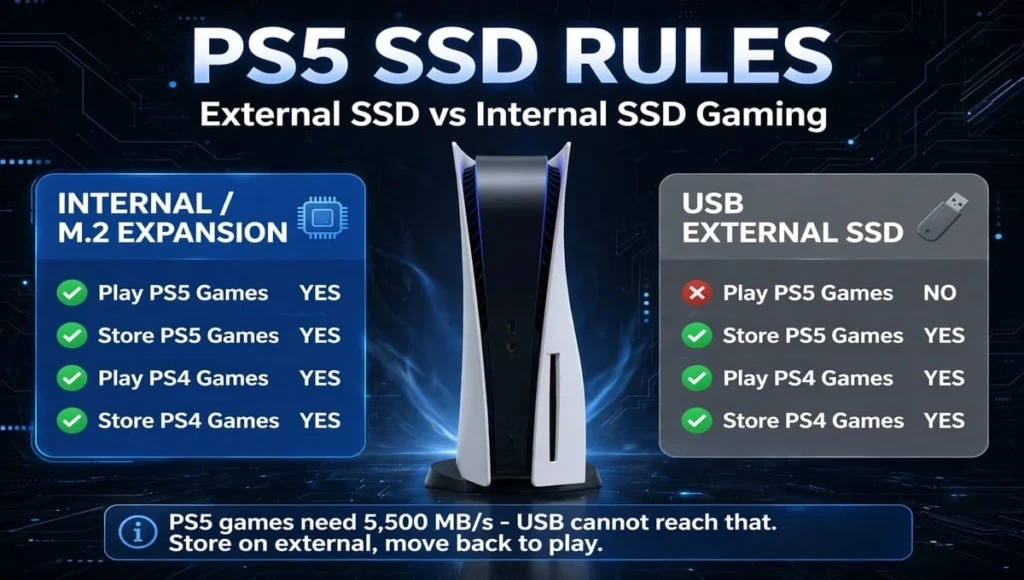
This is tricky:
| Task | Internal / M.2 Expansion | USB External SSD |
| Play PS5 games | Yes | No |
| Store PS5 games | Yes | Yes |
| Play PS4 games | Yes | Yes |
| Store PS4 games | Yes | Yes |
PS5 games need 5,500 MB/s speed. USB externals cannot reach that. So use external to store PS5 games, then move them back to internal when you want to play. It is much faster than re-downloading 150GB.
Xbox Series X|S
Same problem, different rule:
- Optimized Series X|S games: Must be on internal or official Seagate / WD Expansion Card to play.
- Xbox One / 360 / Original games: Can play directly from external SSD.
- Storage: You can store Series games on external, then move them back.
Steam Deck / ROG Ally / Handhelds
- Internal: Best for main games, but opening the device can void warranty and is risky for beginners.
- External: Works via USB-C dock, but not ideal for portable play. Most handheld gamers use a microSD or upgrade internal storage instead.
Winner for consoles: Internal / Expansion Card for playing, external for storage.
Storage Capacity And Price: What Gives More Value?
How Much Storage Do You Need For Gaming?
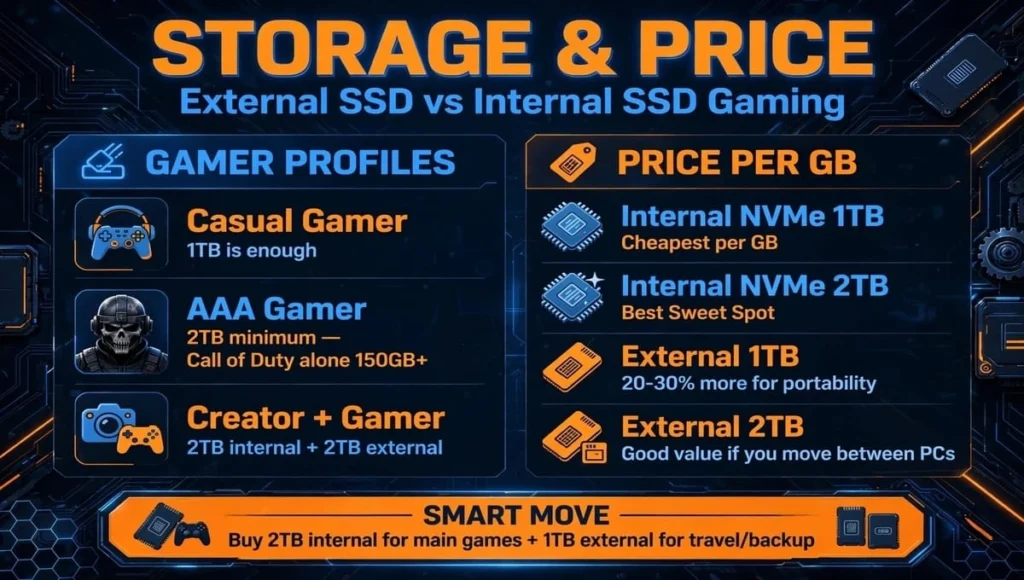
- Casual gamer (5-8 games): 1TB is enough
- AAA gamer (Call of Duty, GTA, Warzone, etc.): 2TB minimum one Call of Duty alone is 150GB+
- Content creator + gamer: 2TB internal + 2TB external
Price Per GB (2026 Average)
- Internal NVMe 1TB: Cheapest per GB, best value
- Internal NVMe 2TB: Best sweet spot for PC gamers
- External SSD 1TB: 20-30% more expensive than internal, but you pay for portability + enclosure
- External SSD 2TB: Good value if you move between PCs
Smart move: Do not buy a 4TB external SSD just because it is on sale. Buy a 2TB internal for your main games, and a 1TB external for travel / backup. You will save money and get better speed.
Best Use Cases For Each SSD
Buy An Internal SSD If You…
- Play on a desktop PC
- Play AAA open-world, Direct Storage, or competitive games
- Want the fastest, most stable load times
- Have a free M.2 slot and do not want cables on your desk
- Want the best SSD for PC gaming for long-term use
Best picks: WD Black SN850X, Samsung 990 Pro, Crucial T500
Buy An External SSD If You…
- Play on a laptop you cannot or do not want to open
- Travel, go to a friend’s house, or use 2 PCs
- Need extra storage for PS5 / Xbox without opening the console
- Want to back up games, videos, and projects
- Want plug-and-play with no tools
Best picks: Samsung T7 Shield, Crucial X9 Pro, SanDisk Extreme Pro, WD Black P50
Buy Both If You…
- Have 20+ games and hate deleting / re-downloading
- Are a streamer or creator who moves large files
- Want speed + portability
This is the setup most pro gamers use: 2TB internal for active games, 2TB external for library + backup.
FAQs – External SSD vs Internal SSD Gaming
Can I play games directly from an external SSD?
Yes. On PC you can install and play Steam, Epic, and Battle.net games directly from a USB 3.2 or Thunderbolt external SSD. On PS5 and Xbox, you can only play older games directly from external.
Will an external SSD increase FPS?
No. An SSD does not increase average FPS. It reduces loading times, stutter, and texture pop-in. FPS depends on your GPU and CPU, not your storage drive.
Is external SSD slower than internal SSD for gaming?
Yes, on paper. Internal NVMe is 5-7x faster in benchmarks. In real games, the difference is often only 3-8 seconds of load time. For most games, a good external SSD feels almost the same.
Can I play PS5 games from an external SSD?
No. PS5 games must be played from internal storage or an M.2 expansion SSD. You can store PS5 games on an external SSD and move them back to play, which is faster than re-downloading.
Can I play Xbox Series X|S games from an external SSD?
No, for Optimized games. They must be on internal storage or an official Expansion Card. Xbox One, 360, and original Xbox games can be played directly from an external SSD.
Is USB 3.0 enough for gaming on external SSD?
Yes, for older and indie games. For new AAA games, use USB 3.2 Gen 2 (10 Gbps) or faster. USB 2.0 is too slow and will cause stutter and long loads.
What is the best SSD for PC gaming in 2026?
For internal, WD Black SN850X or Samsung 990 Pro 2TB. For external, Samsung T7 Shield or Crucial X9 Pro 2TB. Choose internal for speed, external for portability.
Can I use one external SSD for PC and console?
Yes, but you will need to format it for each system. PC uses exFAT / NTFS, PS5 and Xbox use their own format. Use it for one system at a time, or keep separate partitions.
Will opening my laptop to install an internal SSD void warranty?
It depends on the brand. Some brands allow user upgrades, others do not. Check your laptop manual or warranty terms first. If unsure, use an external SSD to stay safe.
Is an NVMe enclosure better than a ready-made external SSD?
Yes, if you want speed and value. Buy an internal NVMe + USB4 enclosure and you get Thunderbolt-level speed for less money. Ready-made drives are easier, with warranty and no setup.
Final Verdict: External SSD vs Internal SSD Gaming
External SSD vs internal SSD gaming is not about which one is “better” it is about which one fits your life.
If you want the fastest, most consistent internal SSD gaming performance, go internal. It wins on speed, stability, and DirectStorage support, and it is the best SSD for PC gaming if you play on a desktop.
If you want freedom, portability, and easy storage, external SSD gaming performance is more than enough for most games today, especially with USB4 and Thunderbolt drives. It wins for laptops, travel, and console storage.
The real winner? Most gamers should start with a 2TB internal SSD for their main games, then add a 1TB or 2TB external SSD when their library grows. You get speed where it matters, and space where you need it.
Stop deleting games to make room. Choose the right drive, plug it in, and just play.